How to Access Windows PC Files from Android using WIFI with Top Transfer Speeds
Subscribe for Updates
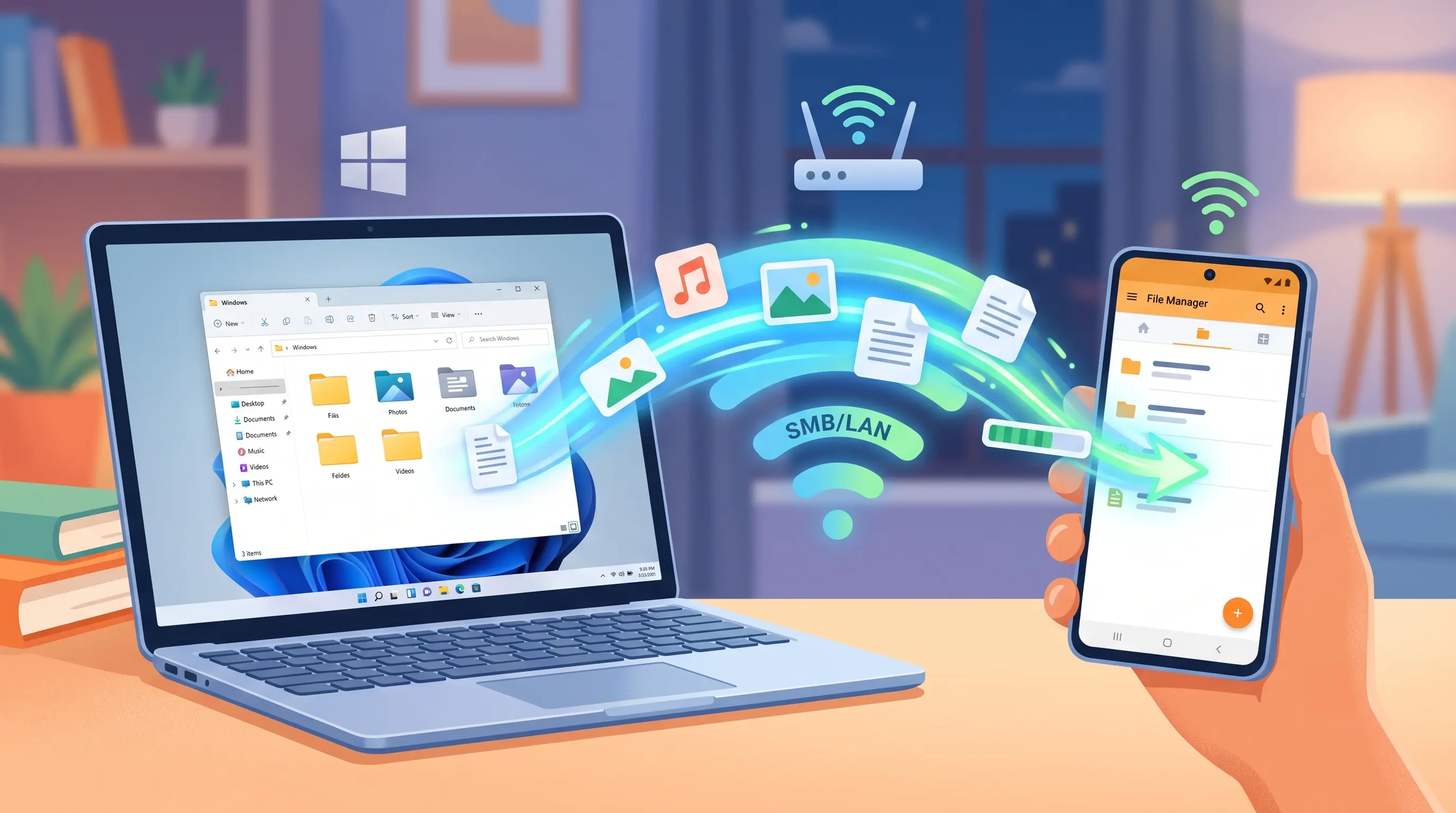
While Microsoft and Google have been working on solutions to share files between Windows and Android, I find them half-baked, slow, and quite time consuming in operation. Plus, it’s usually one way. For instance, the Nearby Sharing from Google or the Phone Link from Microsoft, both all let you access you smartphone from your PC bur mostyly use the slower Bluetooth connectivity. Also, its quite difficult if you want to access you PC files from your smartphone. The following method lets you access you entire computer using your phone with full Wi-Fi router speeds.
Here is the quickest and easiest way to access and manage your PC files from you Android phone. This method is a quality of life change and the quickest way to transfer files to and from your computer using your mobile, over Wi-Fi. This method uses your router, so you get the top speed available on your Wi-Fi router.
The best part is you can directly stream movies or music, which are locally stored on your computer, through your smartphone in high speeds. The playback is instant! You can access each and every file stored on your computer drive and manage it from your phone. With proper permissions, you can even copy, cut, paste, delete, rename, or modify extension of any file that are present on your Windows PC through your Android phone or tablet. So instead of using Bluetooth, that most transfer apps do, we will be using WiFi.

Furthermore, this setup is completely free and does not require any additional hardware.
Prerequisites
- Windows PC and Android phone connected to the same WiFi router or on the same network and discoverable.
- Set Network to Private:
- Go to Settings > Network & internet > Wi-Fi (or Ethernet).
- Click on your connected network and set the Network profile type to Private network.
- Enable Network Sharing:
- Go to Settings > Network & internet > Advanced network settings > Advanced sharing settings.
- Under Private networks, toggle Network discovery and File and printer sharing to On.
- Under All networks, ensure Password-protected sharing is turned On.
- A separate D drive on Windows. (optional but recommended) So you don’t accidentally break Windows installation files.
- Computer folder/drive shared to the home network with permissions like Full Control
- Set Network Sharing:
- Right-click the folder (or your
D:drive) and select Properties. - Open the Sharing tab and click Advanced Sharing.
- Check Share this folder, then click Permissions.
- Click Add, type
MobileShare, and click OK. - Check Full Control (to read, copy, and delete files from your phone), then click Apply and OK.
- Right-click the folder (or your
- Set Security (NTFS) Permissions:
- In that same Properties window, switch to the Security tab.
- Click Edit, then click Add.
- Type
MobileShare, click OK, check Full Control, and click Apply and OK.
- Set Network Sharing:
- Static IP address for Windows PC (recommended) This keeps the IP address of your PC the same so you don’t need to re-connect ever!
- Press the Windows Key, type
cmd, and press Enter. - Type
ipconfigand press Enter. - Locate the line labeled IPv4 Address (e.g.,
192.168.1.15). - On Windows , go to Settings > Network & Internet > Wi-Fi > Yor Wifi
- Click IP assignment
- Change to Manual and paste the IP address.
- Press the Windows Key, type
- Android file manager with Local Network or LAN connectivity (such as CX File Explorer, Solid Explorer, MiXplorer)
Method Comparison: Microsoft Account vs. Dedicated Local User
| Feature / Criteria | Method 1: Microsoft Account | Method 2: Dedicated Share Profile |
| Setup Complexity | Moderate (Requires policy modification) | Moderate (Requires 2 terminal commands) |
| Credential Safety | Lower (Primary online password saved on phone) | High (Isolated credentials scoped only to shares) |
| Windows Hello Impact | Must disable password-block policies | Completely unaffected by Windows Hello |
| Username Predictability | Variable depending on Microsoft alias | 100% predictable local string |
| Password Expiration Risks | Tied to your Microsoft security cycle | Configurable to never expire |
Method 1: Connecting via Online Microsoft Account
If you do not want to configure additional system users or want to create local accounts, you can authenticate using your primary Microsoft Account details. However, we recommend using Method 2 if Method 1 fails. The local account is the quickest way to access computer files.
However, accessing Windows 11 shared folders from an Android phone or tablet using Microsoft account frequently fails because modern Windows installations enforce Microsoft Account authentication and Windows Hello PIN security, both of which break standard Server Message Block (SMB) network handshakes.
To establish a reliable, high-speed connection over your local Wi-Fi network, you must either format your Microsoft Account credentials specifically for SMB or create an isolated, dedicated local account tailored for network shares.
Why Windows 11 Rejects Android SMB Connections
In older versions of Windows, file sharing relied on a straightforward local username and password. Windows 11 complicates this process through two default security behaviors:
- Mandatory Microsoft Accounts: Setup wizards often prevent the creation of standard offline accounts. As a result, the local operating system account is tied to an online identity, leaving users uncertain about which username format external SMB clients expect.
- Windows Hello Credential Isolation: When PIN, fingerprint, or facial recognition sign-in is active, Windows disables remote NTLM/network password authentication for that account by default. Attempting to log in from an Android file manager using your PIN will always fail, and using your actual password will continue to fail until this restriction is lifted.
Step 1: Disable the Windows Hello Password Block
Before Windows 11 will accept your Microsoft Account password over SMB, you must permit standard network password authentication:
- Open Settings on Windows 11 (
Win + I). - Navigate to Accounts > Sign-in options.
- Scroll down to Additional settings.
- Locate “For improved security, only allow Windows Hello sign-in for Microsoft accounts on this device” and toggle it Off.
- Restart your computer to apply the security policy change.
Step 2: Configure Folder Sharing Permissions
- Right-click the folder you wish to share and select Properties.
- Select the Sharing tab and click Advanced Sharing.
- Check Share this folder, then click the Permissions button.
- Highlight Everyone (or click Add to specify your account), check Read (and Change if you need write access from Android), then click Apply and OK.
Step 3: Connecting Android to PC using exact SMB credentials
In your Android file manager (such as Solid Explorer, CX File Explorer, MiXplorer, or Samsung My Files), add a new SMB / LAN connection and input the following parameters:
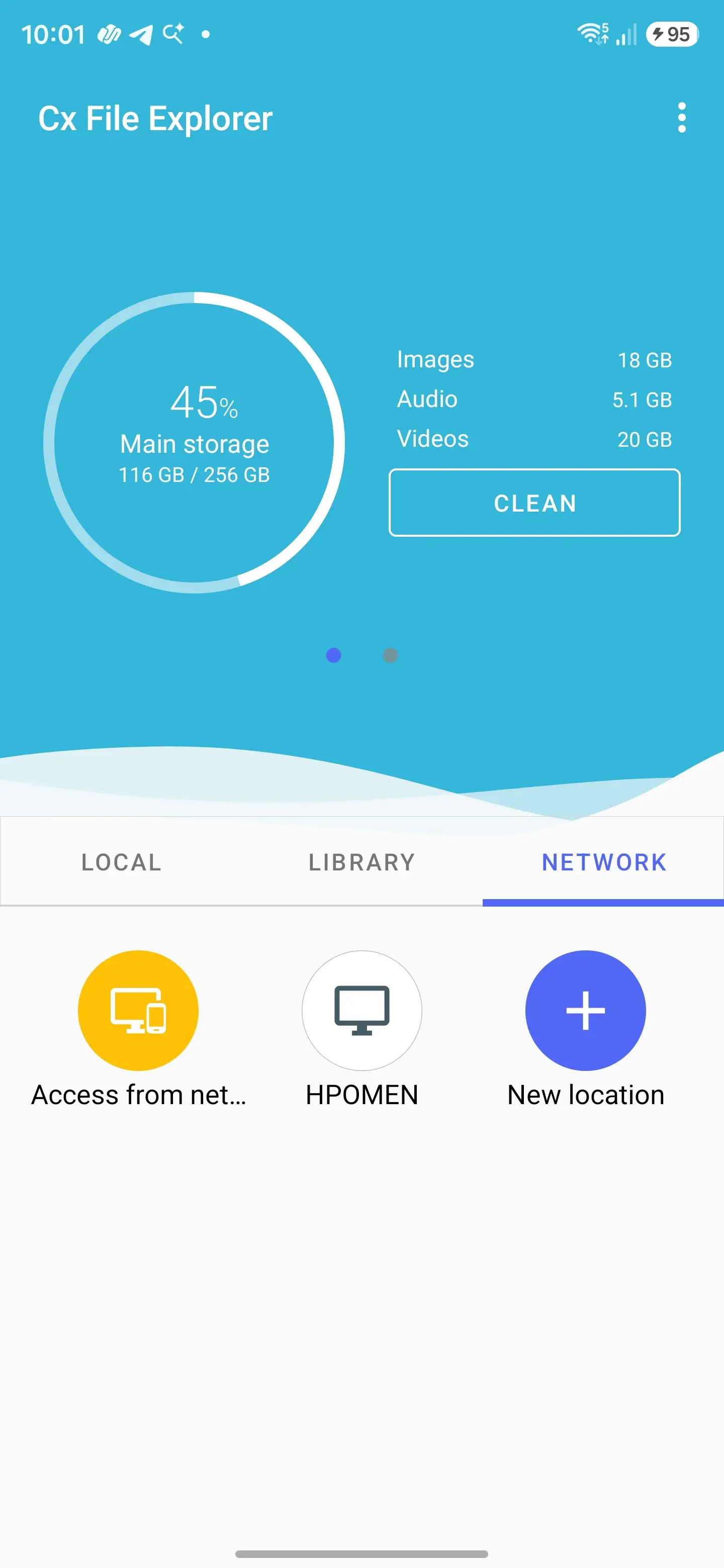
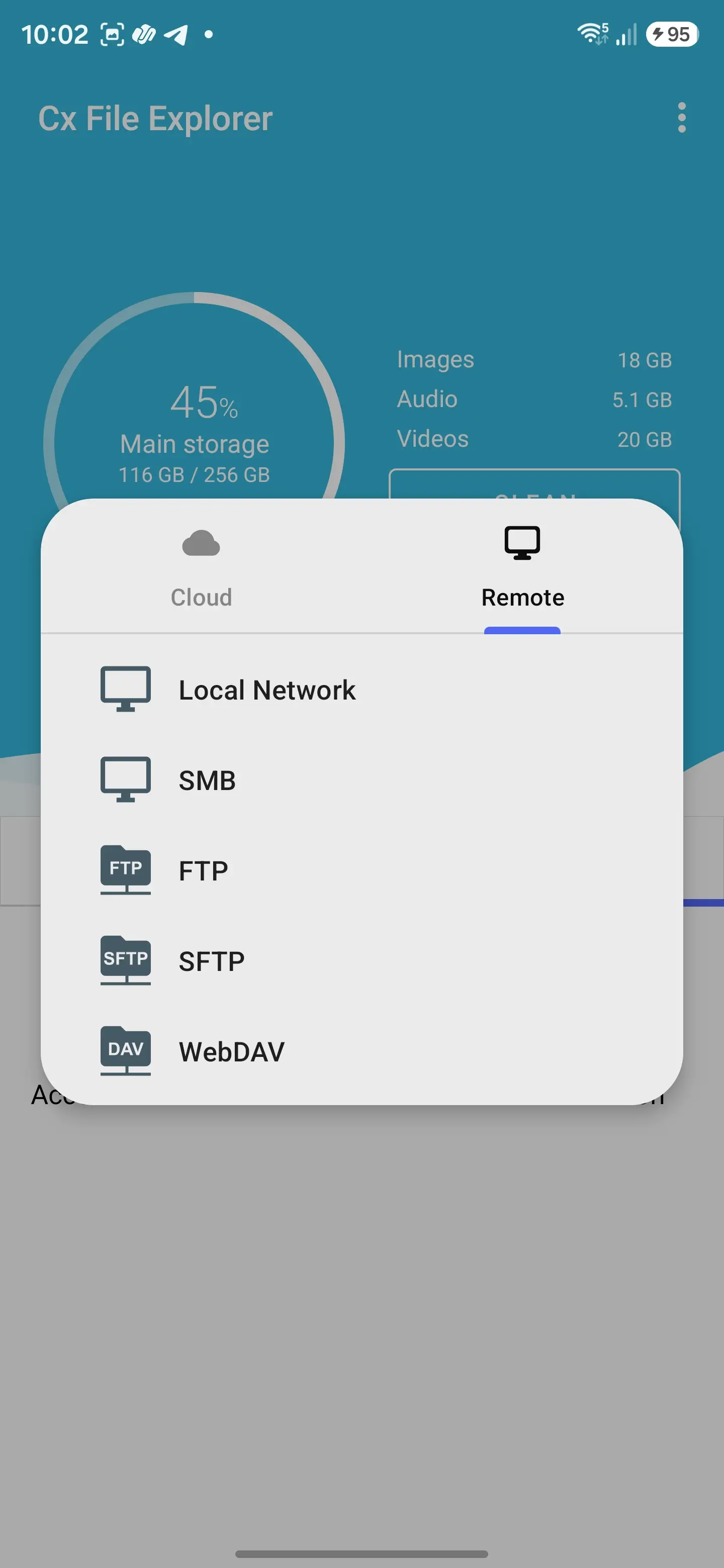
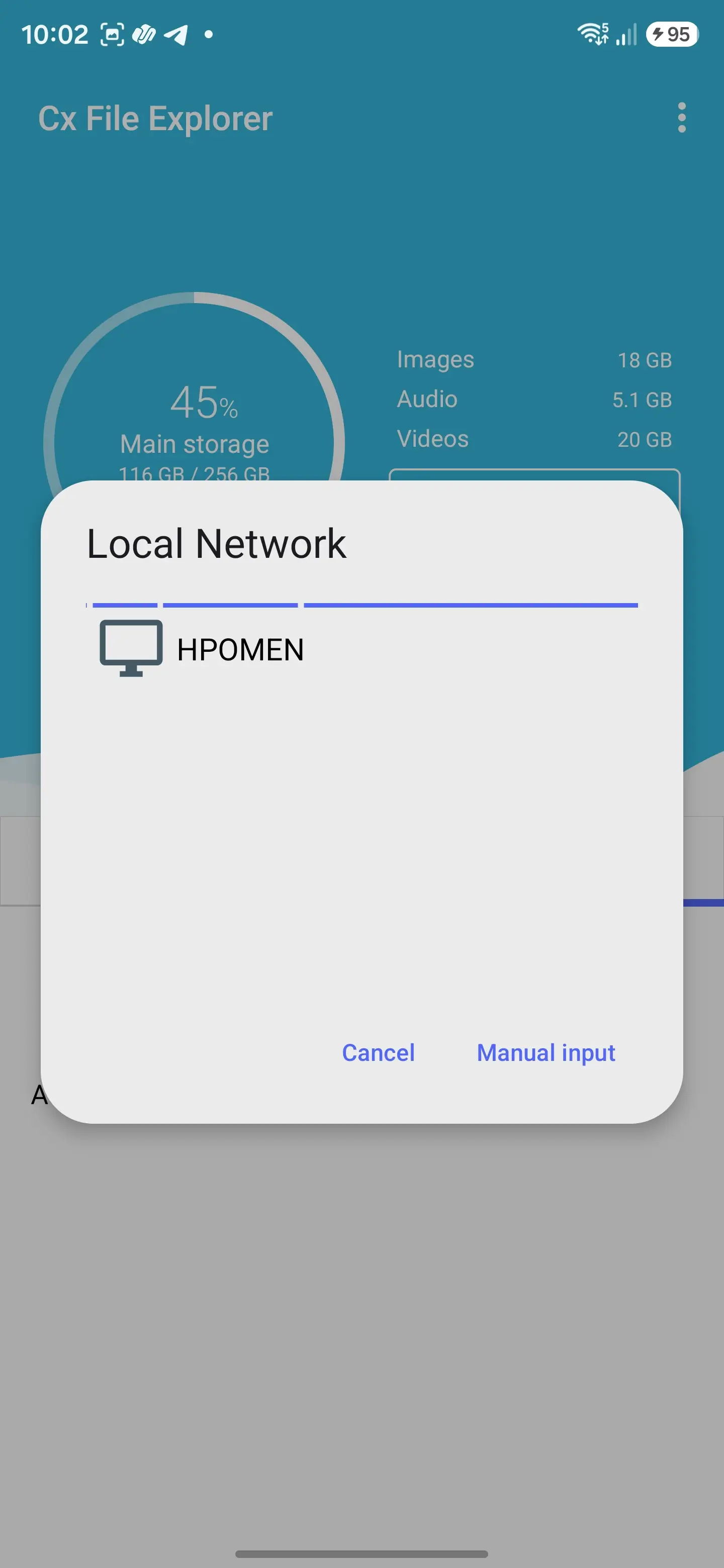
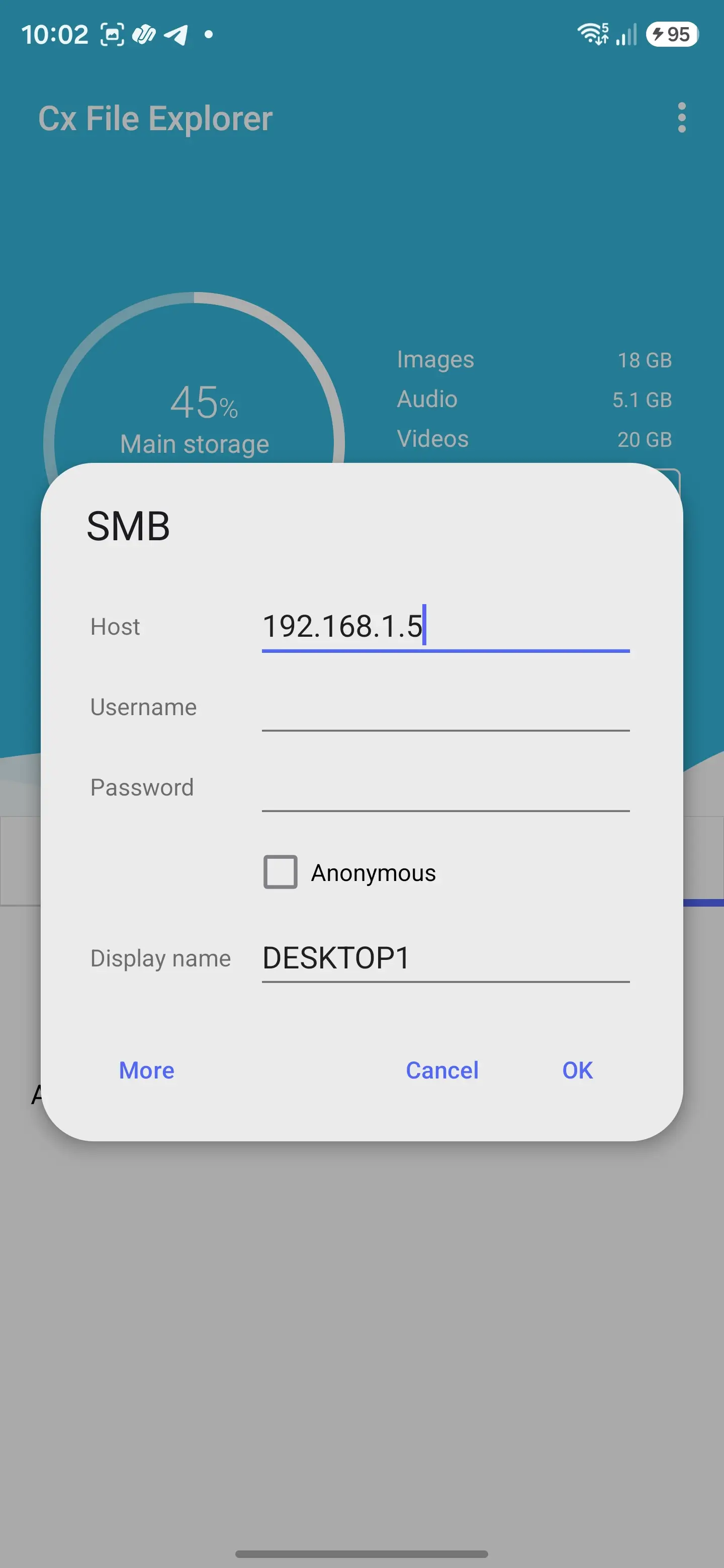
- In CX File Explorer, go to network tab > Add New location > SMB.
- Find you PC name and click on it.
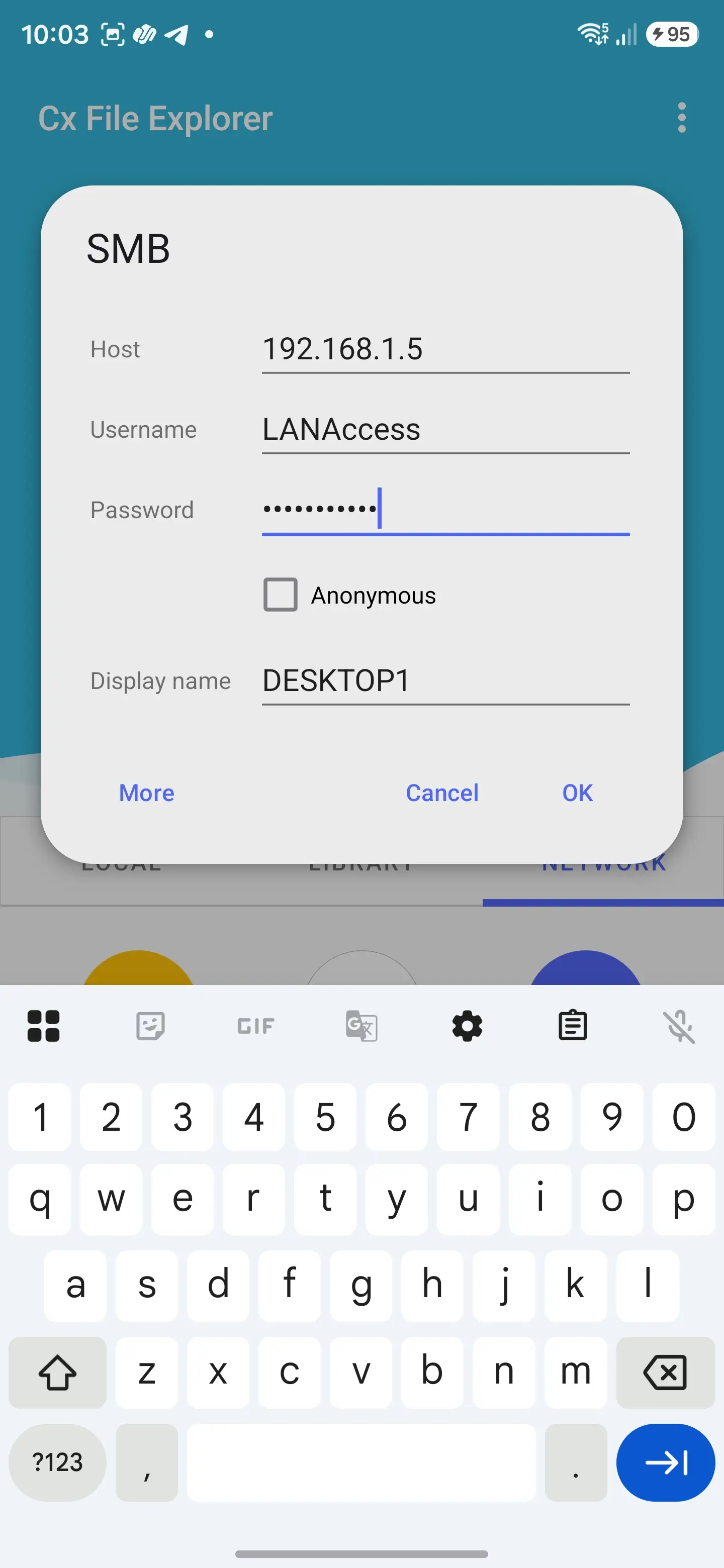
- Your PC’s local IPv4 address (e.g.,
192.168.1.15). Find this by opening Command Prompt, typingipconfig, and checking the active network adapter. - Server / Host: Input IP address of PC
- Password: Your live Microsoft Account password (not your Windows Hello PIN).
- Username: Test the following syntax options in order of compatibility:
Format A (Standard):  your.email@example.com
Format B (Domain-prefixed): MicrosoftAccount\your.email@example.com
Format C (System Alias):    PCNAME\Username (Find by running 'whoami' in Command Prompt)
Method 2: Creating a Dedicated Local Sharing Profile (Recommended)
The cleanest and most secure approach bypasses Microsoft Account formatting entirely. By creating a lightweight, dedicated local user explicitly for file transfers, your primary Microsoft password remains unexposed on mobile devices, and Windows Hello policies will not interfere with SMB requests.
Step 1: Create the Dedicated Local User
- Open PowerShell or Command Prompt as Administrator (Press
Win + Xand select Terminal (Admin)). - Execute the following command to provision a dedicated user (replace
LANAccessandYourSecurePasswordwith your chosen values):
PowerShell
net user LANAccess YourSecurePassword /addStep 2: Prevent Password Expiration
Modern builds of Windows 11 deprecate wmic. Use native PowerShell commands to ensure the sharing account does not lock you out unexpectedly:
If running inside PowerShell directly (PS C:\...):
PowerShell
Set-LocalUser -Name "LANAccess" -PasswordNeverExpires $trueTo verify the policy is active:
PowerShell
Get-LocalUser -Name "LANAccess" | Select-Object Name, PasswordRequired, PasswordNeverExpires, PasswordExpires (The output should confirm PasswordExpires: False and PasswordNeverExpires: True.)
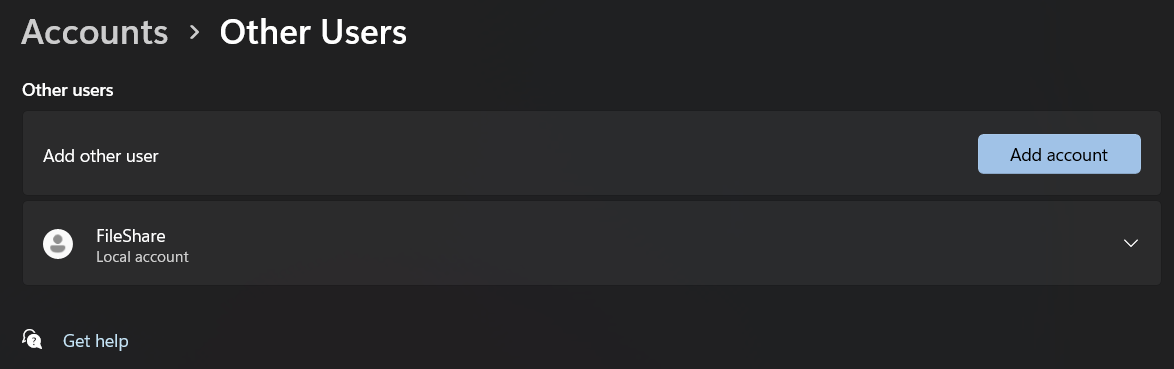
Step 3: Grant Dual-Layer Permissions (Share + NTFS Security)
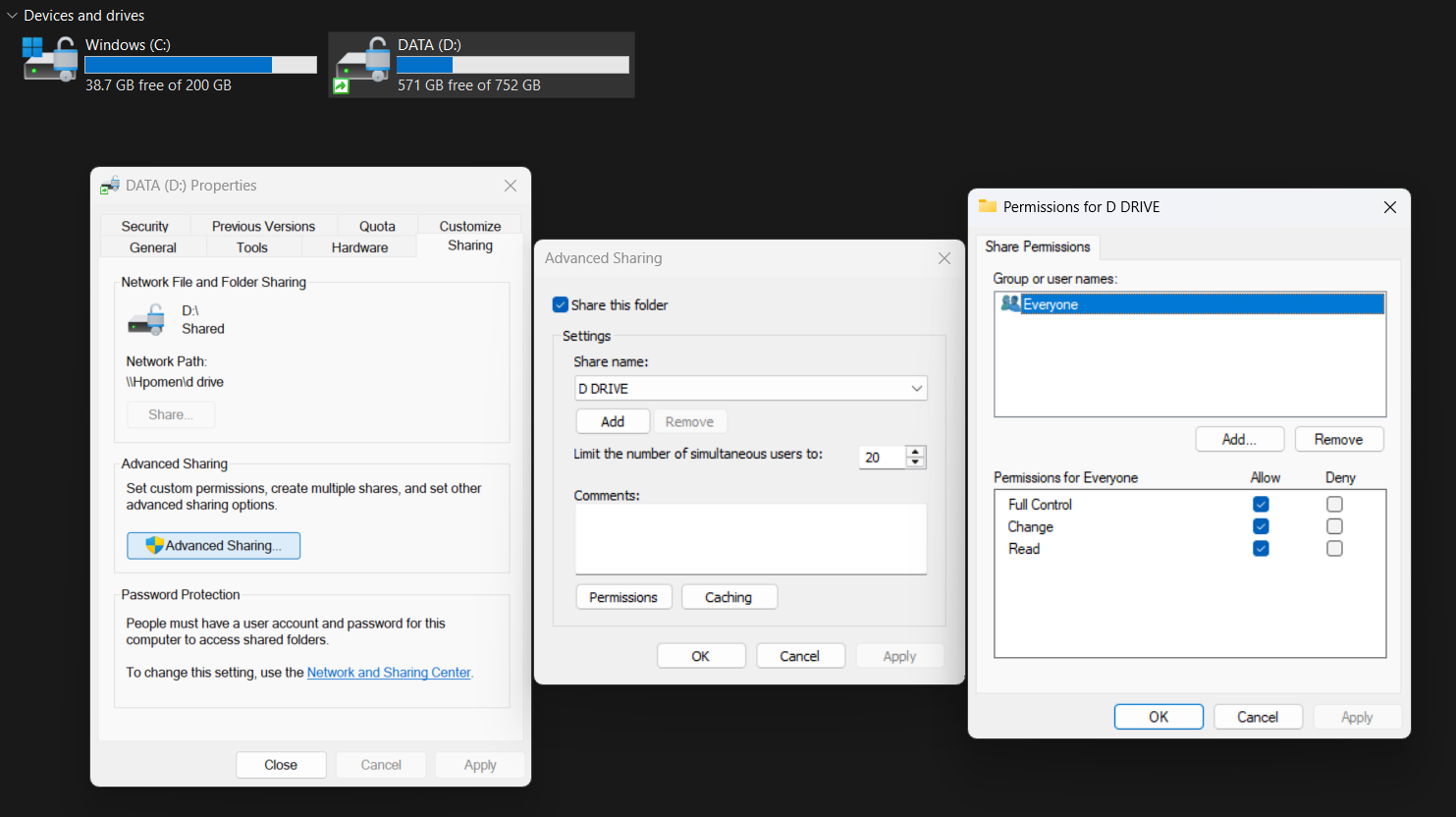
Windows requires permissions at both the network share layer and the local file system (NTFS) layer. Missing the NTFS layer is the most common reason for an “Access Denied” error on Android.
A. Share Permissions
- Right-click your shared folder > Properties > Sharing tab.
- Click Advanced Sharing > Permissions.
- Click Add, type
LANAccess, click Check Names, and select OK. - Check Full Control (or Read) and click Apply.
B. NTFS (Security) Permissions
- In the same folder properties window, switch to the Security tab.
- Click Edit…, then click Add….
- Type
LANAccess, click Check Names, and select OK. - Highlight
LANAccessin the top list, check Full control (or Read & execute), and click Apply > OK.
Step 4: Connecting Android to PC using LAN
In your Android file manager (such as Solid Explorer, CX File Explorer, MiXplorer, or Samsung My Files), add a new Local Network / LAN connection and input the following parameters:
- In CX File Explorer, go to network tab > Add New location > Local network.
- Find you PC name and click on it.
- Your PC’s local IPv4 address (e.g.,
192.168.1.15). Find this by opening Command Prompt, typingipconfig, and checking the active network adapter. - Server / Host: Input IP address of PC
- Username: LANAccess or whatever username you entered.
- Password: The password you put in step 1 net user LANAccess YourSecurePassword /add
Troubleshooting Broken Connections & Permission Errors
If your PC appears on the local network scan but fails during authentication or suddenly stops connecting, work through these diagnostic checks:
1. Network Profile Reverted to “Public”
Windows updates frequently reset Wi-Fi network configurations to “Public,” which immediately closes all incoming SMB ports:
- Open Settings > Network & internet > Wi-Fi.
- Click on your active connection properties.
- Under Network profile type, ensure Private network is selected.
2. Verify Advanced Sharing Settings
- Open Settings > Network & internet > Advanced network settings > Advanced sharing settings.
- Under Private networks, ensure both Network discovery and File and printer sharing are toggled On.
- Under All networks, verify that Password protected sharing is toggled On. (Turning this off forces guest access, which causes modern Android SMB implementations to reject the handshake).
3. Account Status Check
If you suspect the dedicated account has been disabled:
PowerShell
net user LANAccess
Check the Account active line. If it states No, reactivate it by running:
PowerShell
net user LANAccess /active:yes
Step-by-Step: Connecting from Android
1.Ensure Shared Wi-Fi Connectivity:
Connect both your Android device and your Windows PC to the same local Wi-Fi network (and verify that client isolation is disabled on your router).
2.Retrieve the PC’s Local IPv4 Address:
Open Command Prompt on Windows, run ipconfig, and locate your active adapter’s IPv4 Address (e.g., 192.168.1.45).
3.Add an SMB Connection in Your Android File Manager:
Open your Android file manager, navigate to Network, Storage, or LAN, and select Add New Storage (SMB) or LAN.
4.Enter Host and Credentials:
Input your PC’s IPv4 address in the Server field. Enter your chosen authentication credentials:
- Dedicated Account: Username
LANAccess, PasswordYourSecurePassword. - Microsoft Account: Username
MicrosoftAccount\email@domain.com, PasswordYourMSPassword.
5.Mount and Access Folders:
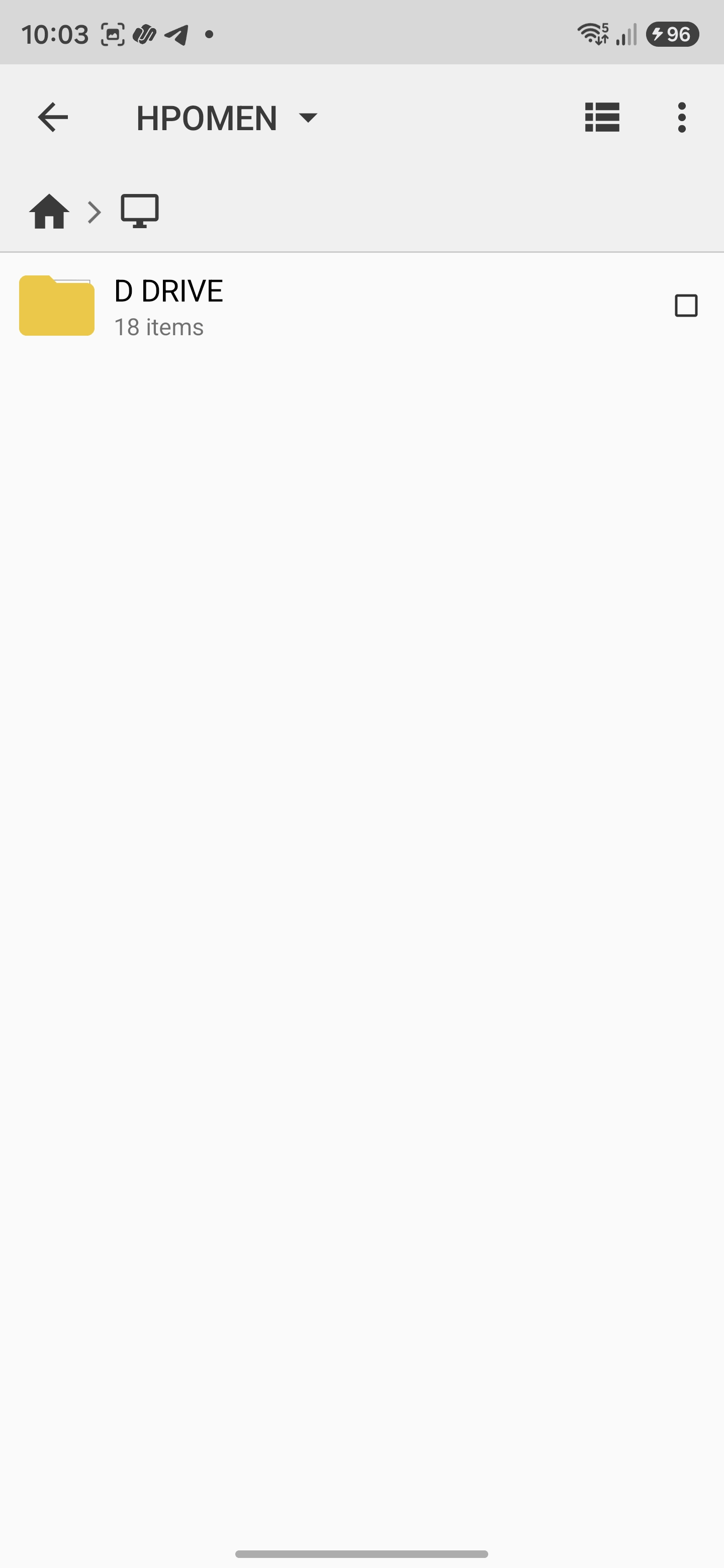
Save the configuration and tap the connection profile. Your shared folders will mount directly in your Android file directory tree.
Frequently Asked Questions
Can I use my 4-digit Windows Hello PIN to log in over SMB from Android?
No, Windows Hello PINs, fingerprints, and facial recognition data are stored locally in the device’s TPM and cannot authenticate remote network requests. You must use the actual account password or configure a dedicated local share user.
Why does my Android file manager fail to find the PC by its computer name?
Android devices often struggle with local NetBIOS and mDNS hostname resolution across consumer routers. Connecting directly to your computer’s static or current IPv4 address (e.g., 192.168.1.15) provides an immediate, reliable handshake.
Why does my connection fail with an “Access Denied” error even though my password is correct?
This almost always indicates a conflict between Windows Share permissions and NTFS Security permissions. You must explicitly add your user account to both the Sharing tab (Advanced Sharing) and the Security tab under the folder’s Properties.
Is it safe to leave Password Protected Sharing turned off?
No, disabling password-protected sharing attempts to route connections through an unauthenticated Guest pipeline, which modern Windows 11 installations restrict by default. Keeping password-protected sharing enabled ensures a compliant, authenticated SMB session.
Experience Expressive Launcher
Clean, fluid Material 3 customisation engineered specifically for modern Android setups. Available now on Google Play, or join the community for regular updates.
Get on Google Play