Custom Fonts can now be Installed on Samsung One UI 8.0 & 8.5
Subscribe for Updates
Great news for Samsung Galaxy users — custom fonts are back! After the March 2026 security patch broke the popular zFont app, the developers have rolled out an update that restores full functionality, and it’s simpler to use than ever before.
The one catch: you’ll need to install a companion app called zFile, made by the same developer. Once your font is installed, it’ll appear as a separate package under Settings > Apps, which you can remove at any time.
Here’s what’s been going on behind the scenes:

Samsung’s March 2026 security patch introduced a hard block on non-root custom fonts for devices running OneUI 8.0 (March patch and later) and all versions of OneUI 8.5. The block operates on multiple levels — certificate hash validation, fs-verity kernel enforcement, and SELinux protection — making it particularly difficult to bypass.
As a result, zFont 3 and similar tools became completely non-functional on affected devices without root access. Currently, rooting remains the only confirmed workaround, though it comes with trade-offs including Knox flag trips, potential warranty implications, and system stability risks. The zFont developer is actively exploring a non-root solution, though no guarantee of success has been given.
Which devices are affected?
- OneUI 8.5 — All versions on all compatible Galaxy devices
- OneUI 8.0 — Any build running the March 2026 security patch or newer
Devices still on OneUI 8.0 with a pre-March patch are temporarily unaffected. In short, Samsung has effectively ended non-root custom font support for millions of Galaxy users worldwide, with no official alternative announced.
The patch
The developer of zFont, Htet Zaw Naing, has released a new version [3.9.2.2] with a fix, stating exclusive compatibility with Fonts on newer OneUI 8 and 8.5. In addition, the dev also added downloaded fonts to Global Search results. Updated SDKs.
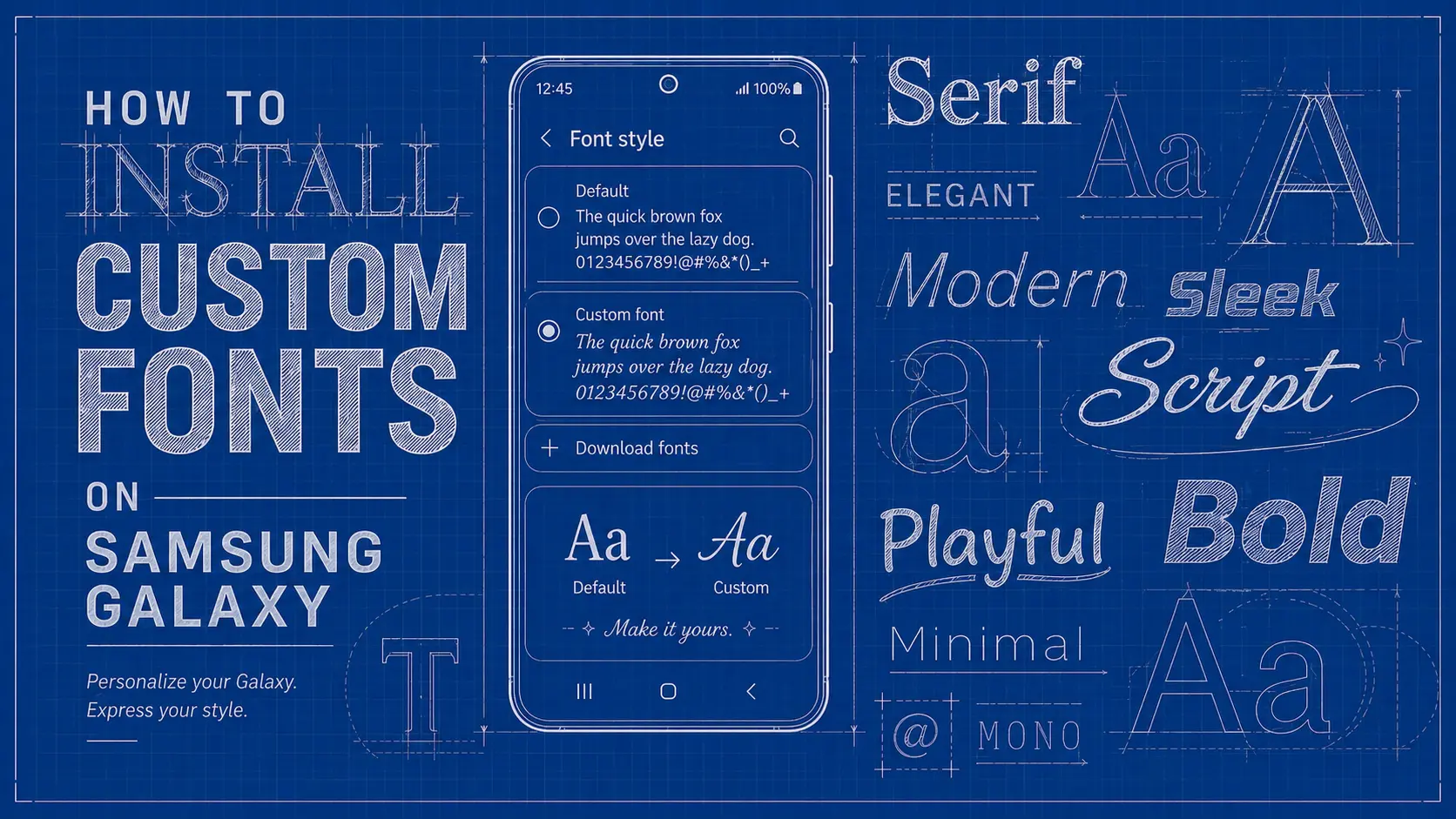
How to Install Custom Fonts on Samsung Galaxy phones?
Warning: OneUI 8 and 8.5 custom font compatibility is an experimental build right now. When we installed the font, it took a long time for the device to boot, with app optimization taking a very long time. Thankfully, it successfully booted and did not get stuck in a boot loop. In some instances, a bootloop may occur. So backup your device before proceeding!
With that said, let’s begin!
1. Download a font file in TTF format
The font installer app that we are going to use includes the installation of custom fonts via .TTF file formats. So you must download fonts from the web in .TTF format only.
Download Google Fonts
Here are some popular fonts in the Android community. Google Sans font from Google Pixel smartphones.
Google Sans, Roboto, Google Sans Flex, Roboto Flex, etc., are now free to use on Google’s own site.
Download unlimited fonts from the web
The internet has a plethora of font collections. A simple Google search should get you started. However, for convenience, we are listing some font repositories for ease.
- Explore all Google Fonts
- Fonts (dot com)
- BeFonts
- Important tool! Fount (select any font from the web)
- Check out Creative Fabrica for awesome free fonts!
Note for Fount: Drag and drop the “Fount” button in the browser’s bookmark. Then visit a webpage and click on the Fount button in your bookmark bar and select any text to find the font.
2. Download zFont 3 APK for Samsung One UI 8
Thanks to projects like zFont 3, installing any font on any Samsung device is now possible.
In this tutorial, we will see how to install any font on your Android using a .TTF file format. This includes Google Sans, Roboto, Product Sans, Rubik (which we use on our site), and much more.
Download one of the following Font changer apps:
3. Installing Fonts on Samsung Galaxy Devices (One UI 8+)
Make sure you have a Samsung account signed in on your phone.
Download the font you like from above in .ttf format.
Download and install zFont 3 app from above.
Launch the zFont 3 app.
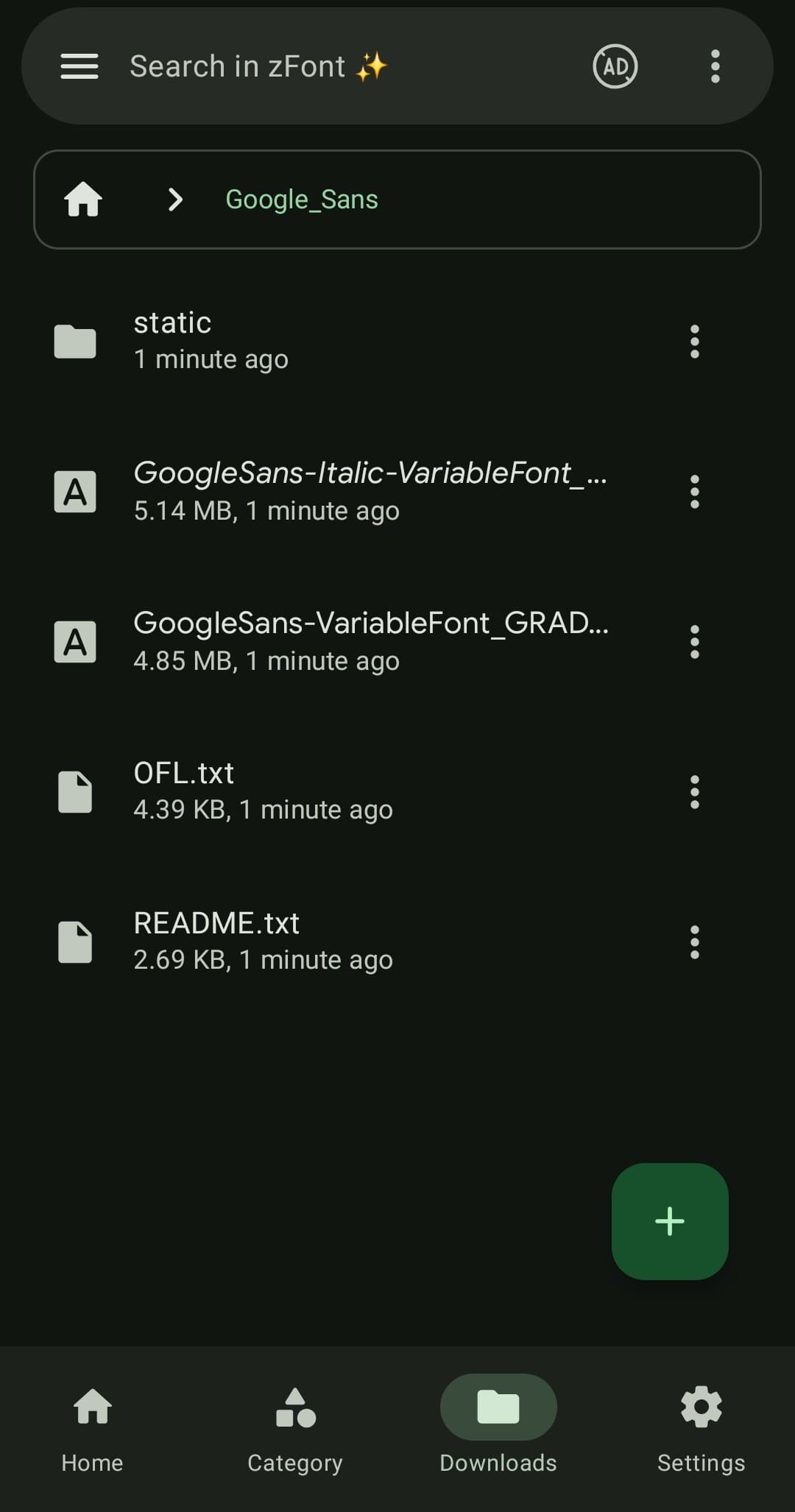
Go to the “Downloads” tab in the app.
Select any font like “GoogleSans-Regular.ttf”
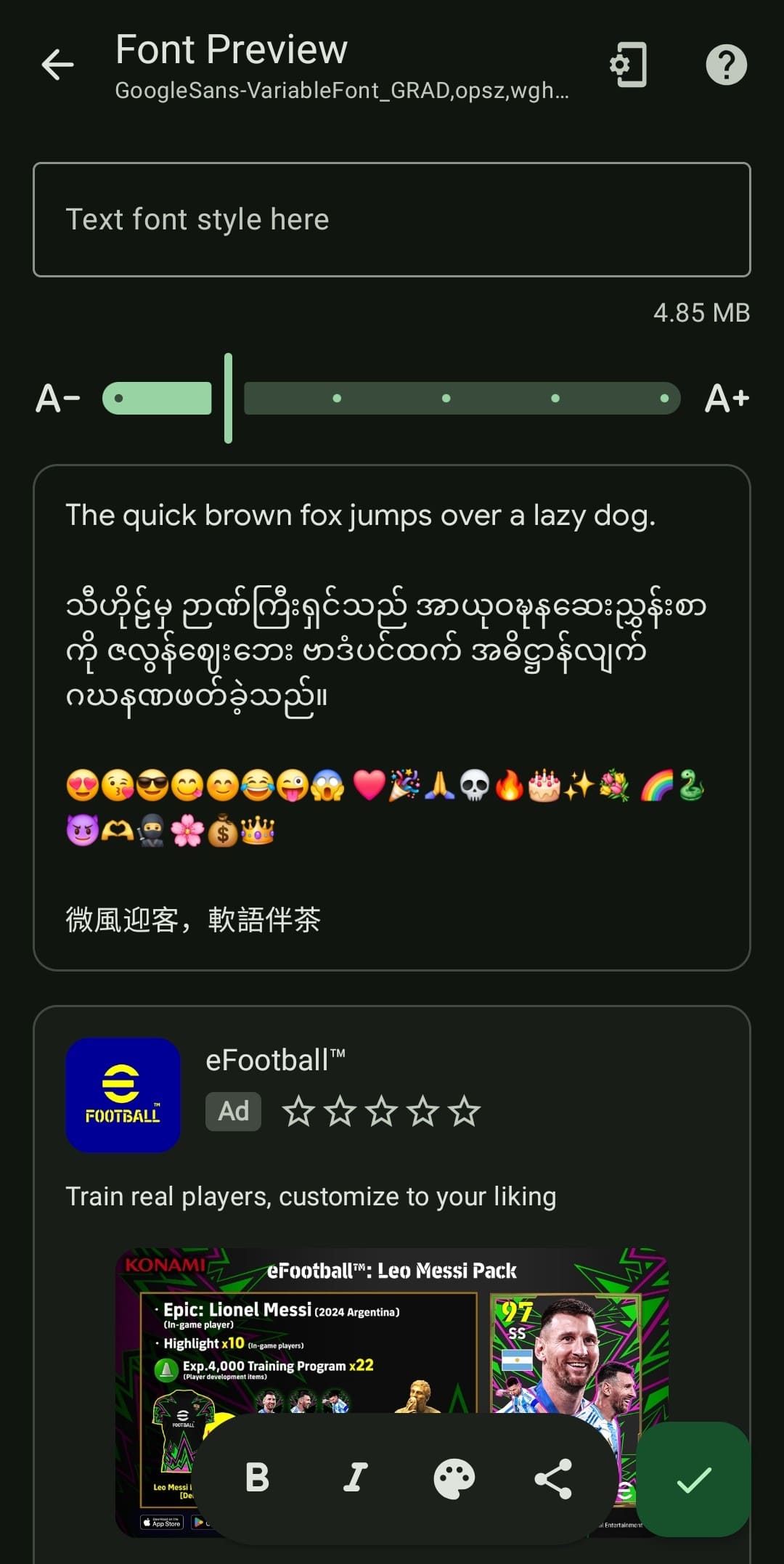
Select and apply the tick mark button in the Font Preview section.
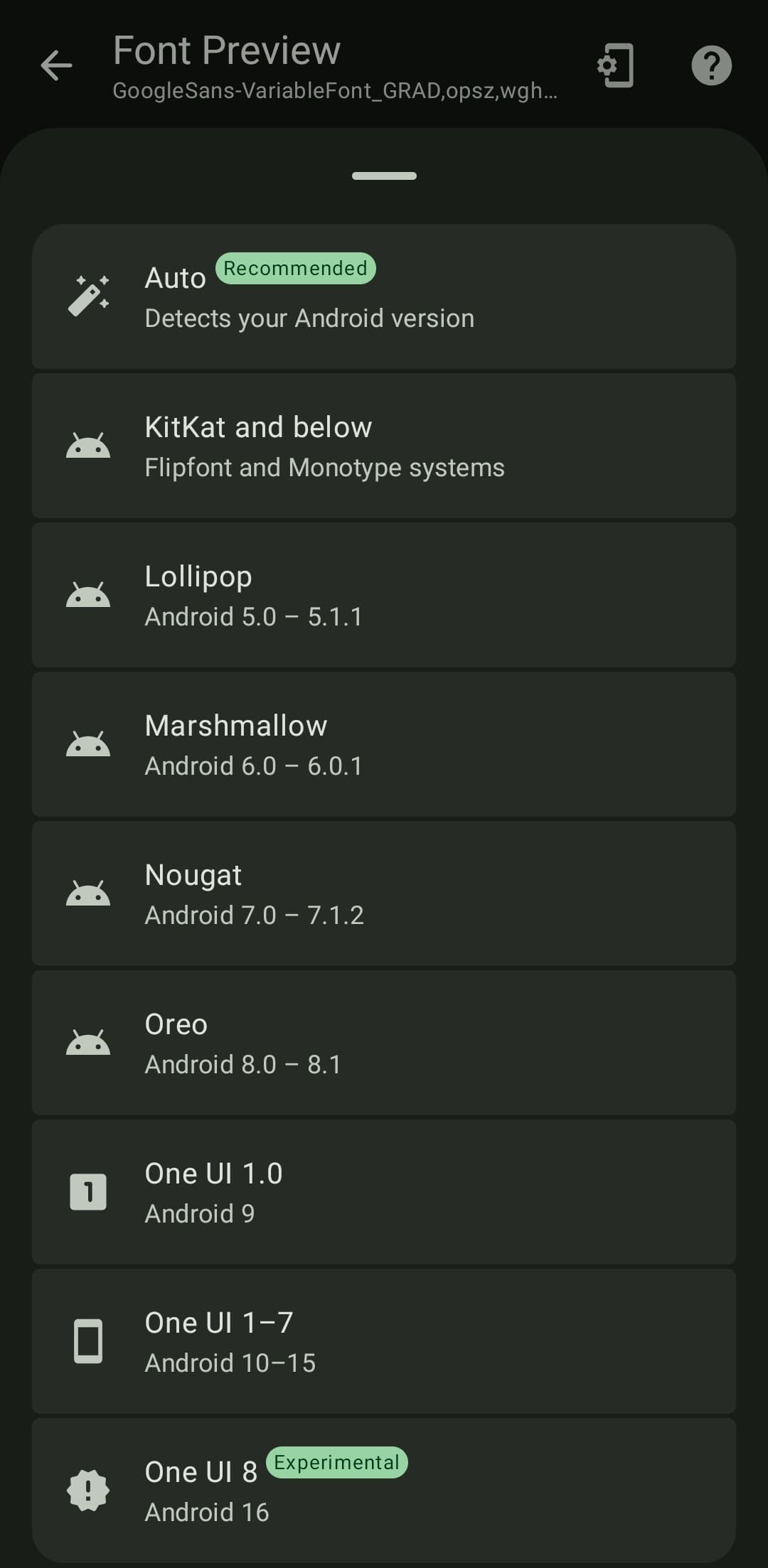
Select One UI 8 (Experimental)
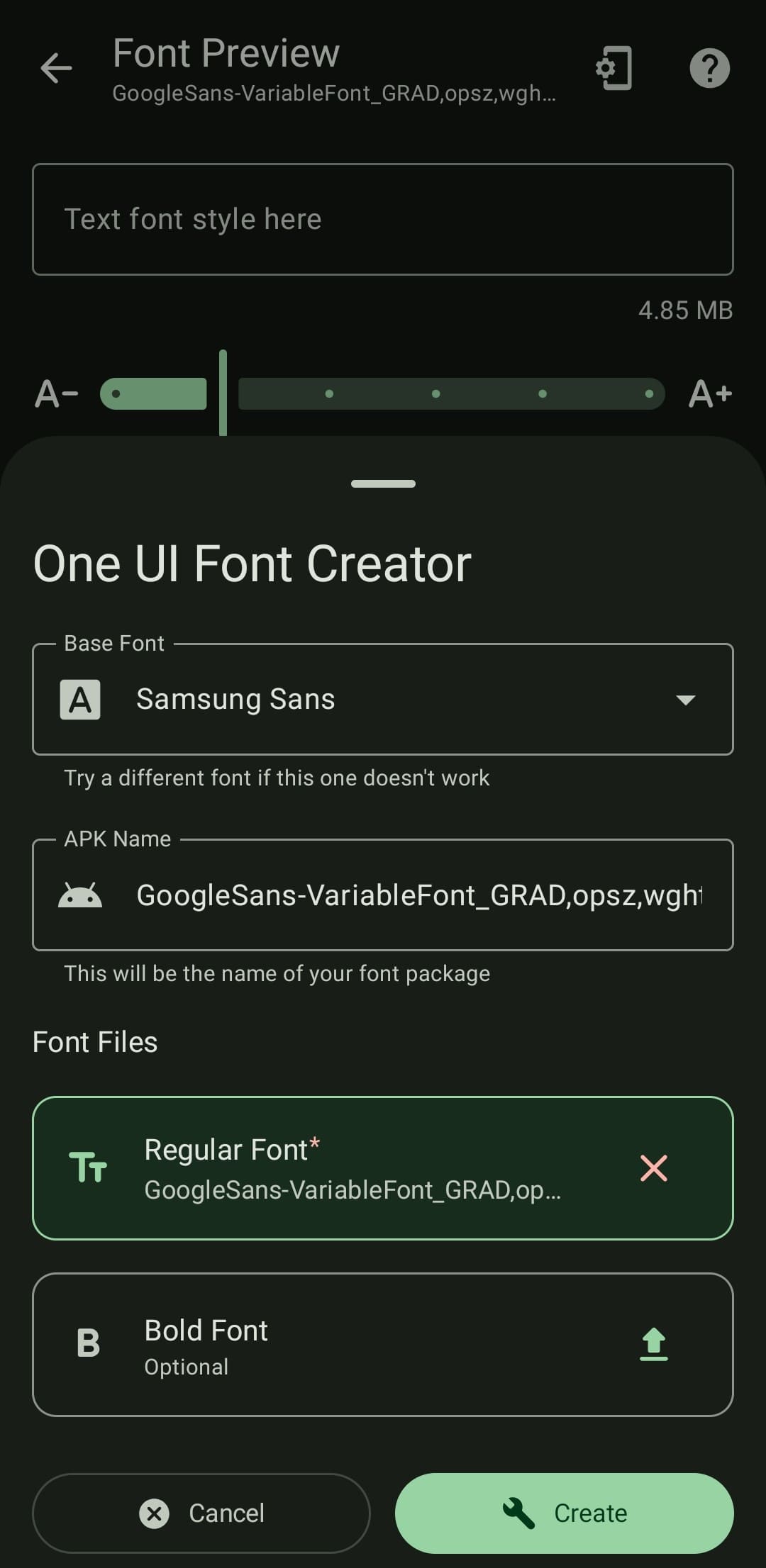
On the One UI Font Creator, select Create.
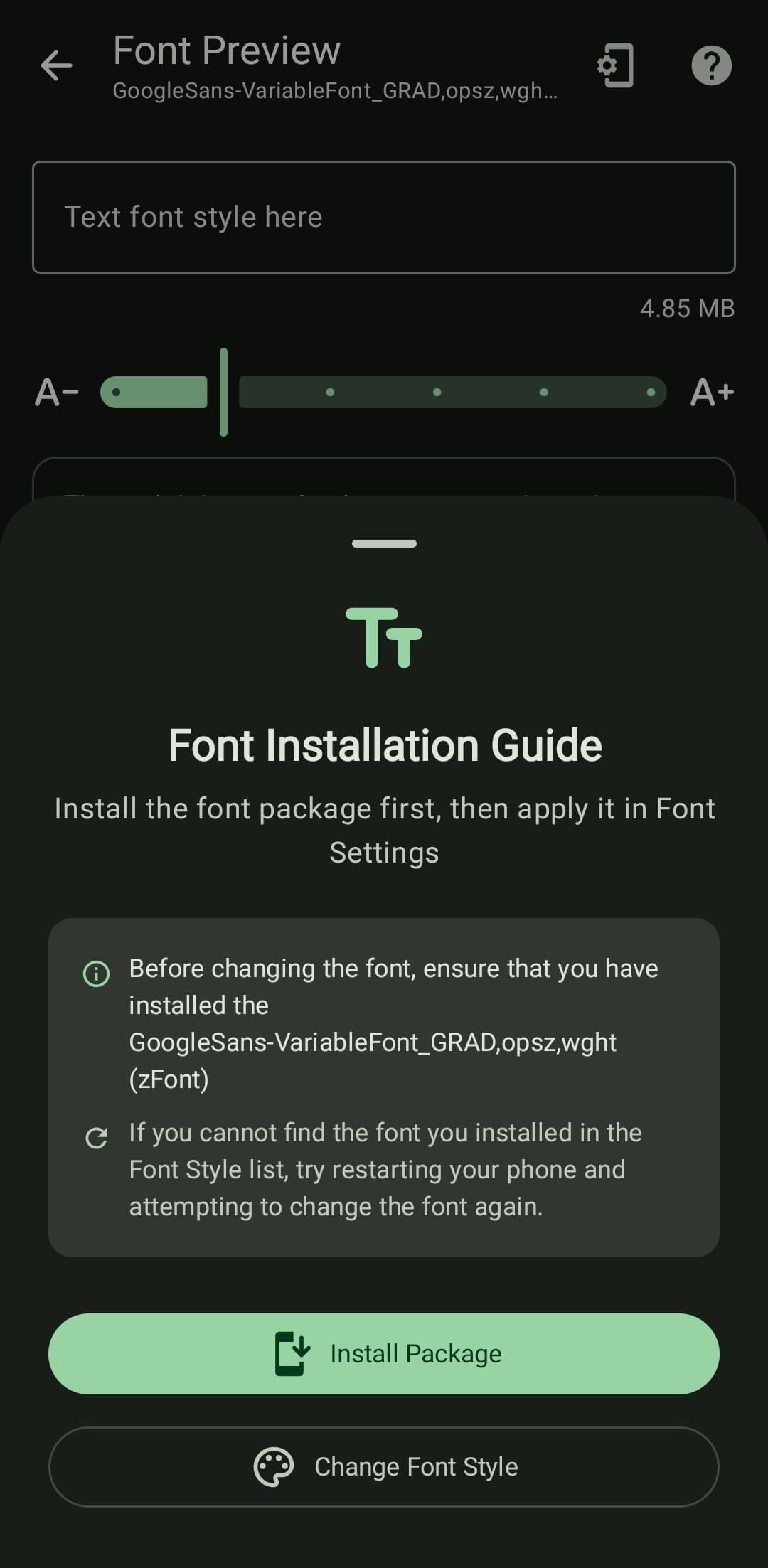
It will ask you to install a new zFile manager file.
Install it.
Now, create the font again.
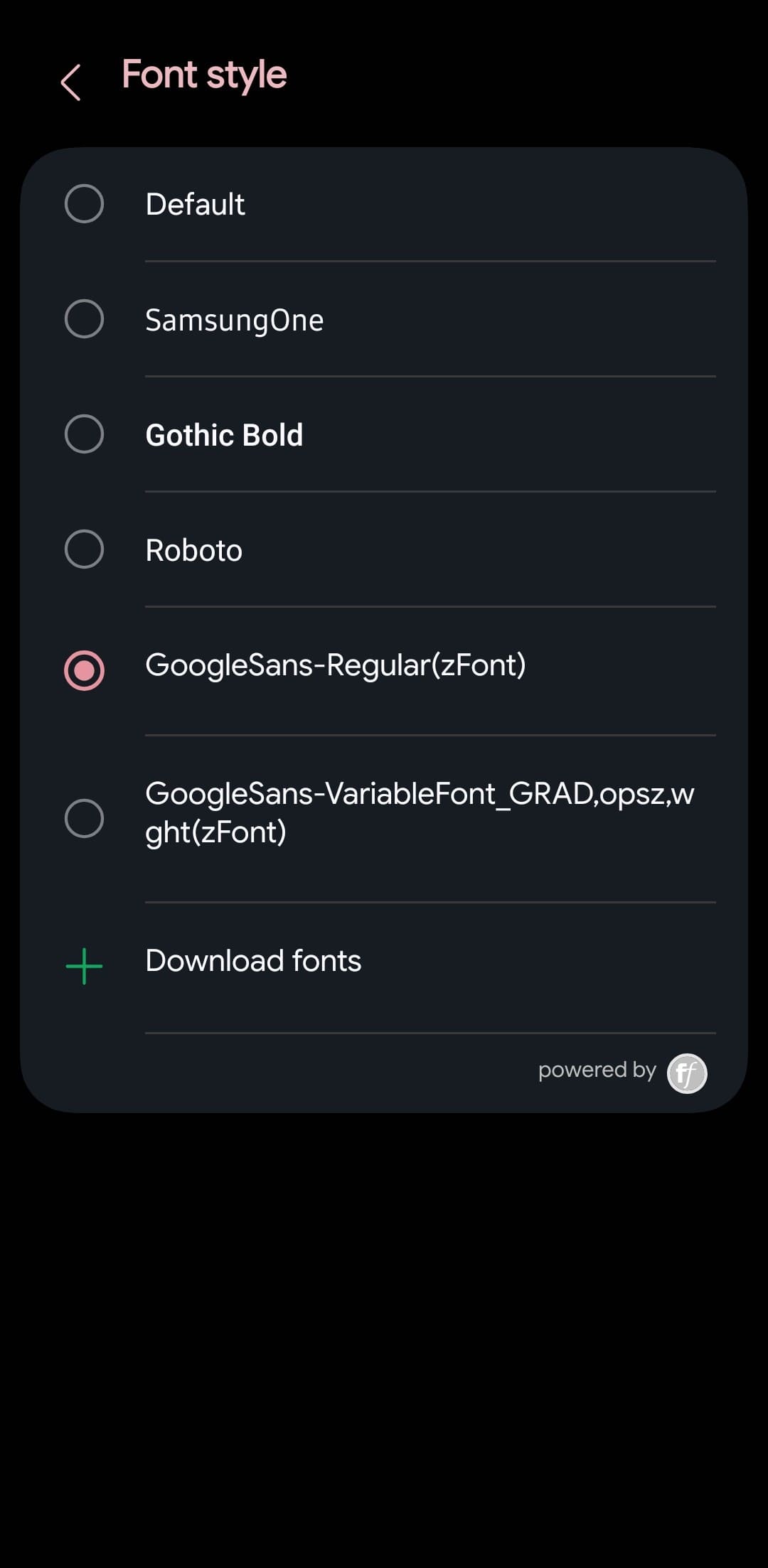
Once installed, it should show the new fonts in Settings > Font size and style section.
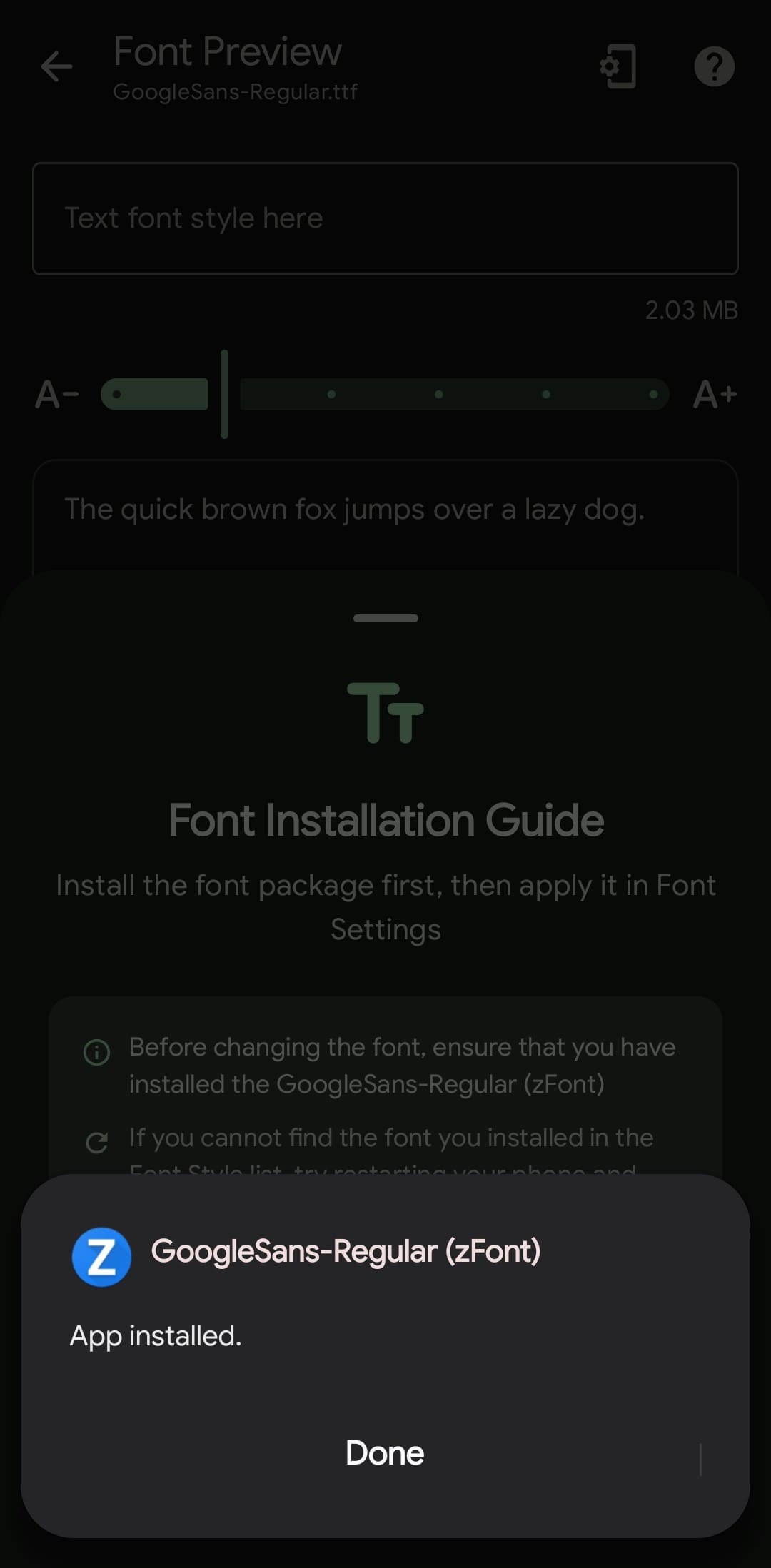
Make sure you have selected the Google Sans Font.
Experience Expressive Launcher
Clean, fluid Material 3 customisation engineered specifically for modern Android setups. Available now on Google Play, or join the community for regular updates.
Get on Google Play