
Download Samsung LockStar 8.5 Update with Unlock Animations, Add Text, and AOD Brightness Control


The Samsung LockStar app has just received its biggest update, version 8.5.00.8, for Galaxy devices. It now supports One UI 8.5 (Android 16) or earlier. The previous update added several customization options, including dynamic wallpaper and widget integration. Here, download LockStar 8.5 APK.
Samsung’s Lock Star update for One UI 8.5 introduces the most anticipated lock screen customization options, including AOD brightness control, widget integration, and 10 fully customizable unlock animations, including warp, mosaic, and ripple effects.
Shortly after the Good Lock 2025 release, all of its modules are now being updated with support to One UI 8. Samsung maintains a separate set of modules that enable even more tweaks for the Galaxy smartphones. These options can be accessed via Good Lock and several of its plugins.

What’s new in the Samsung Lockstar 2026 update?
Samsung has once again strengthened its reputation as the undisputed champion of Android customization with a groundbreaking update to Lock Star that works seamlessly with One UI 8.5 or earlier versions. Here’s what’s new in the latest Lockstar update.
Always On Display: Finally Taking Full Control
Brightness Management Revolution
One of the most requested features has finally arrived: manual brightness control for the always-on display. For years, users have been at the mercy of automatic brightness algorithms that sometimes left their AOD too bright at night or too dim during the day.
What’s New:
- Disable Auto Brightness: Users can now turn off automatic brightness adjustment entirely
- Manual Slider Control: A simple slider lets you set your preferred brightness level
- Flexible Switching: Toggle between custom settings and stock behavior whenever you want

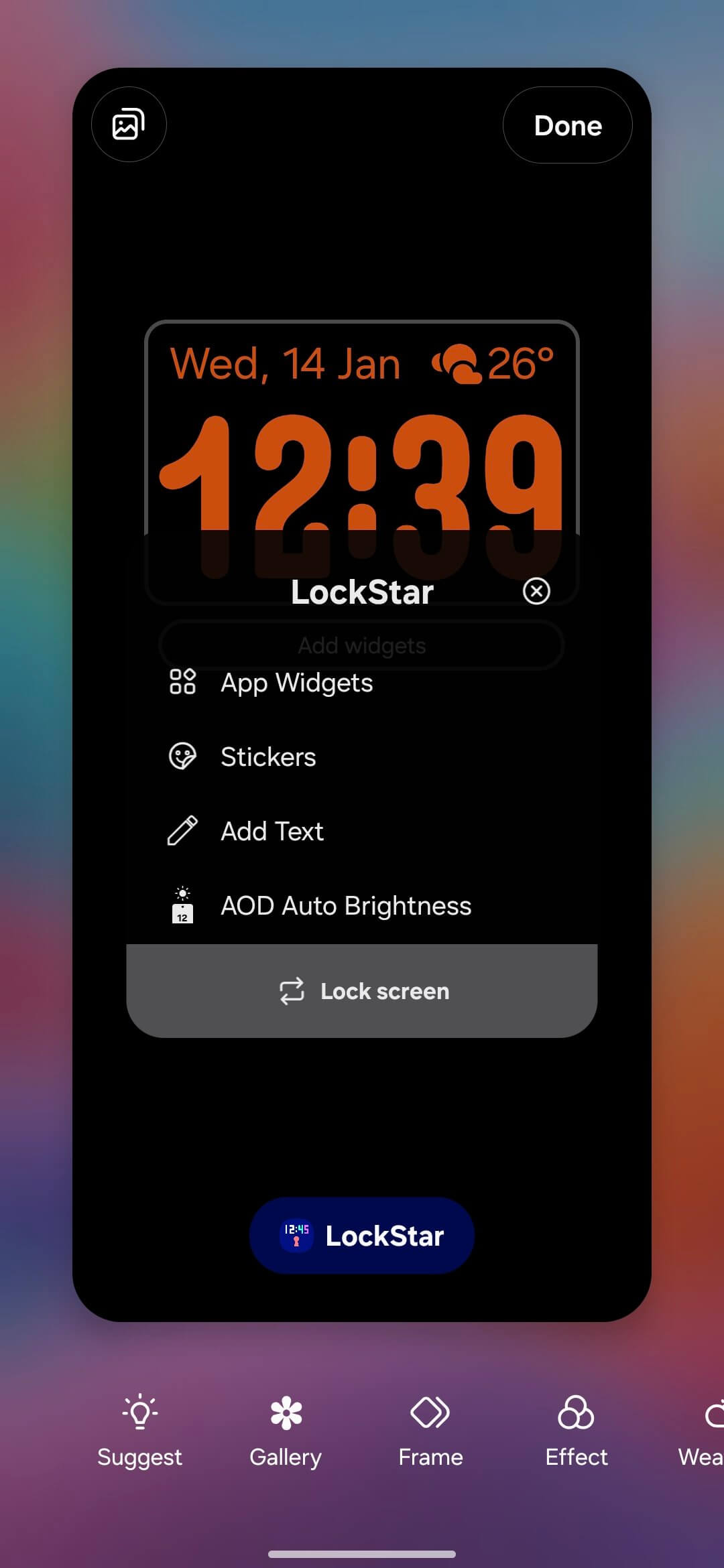
This seemingly simple addition solves a major pain point. If you’ve ever been annoyed by your phone’s glowing screen keeping you awake at night or struggled to see notifications on a sunny day, this feature alone makes the update worthwhile.
The customization options extend far beyond brightness:
Text Customization
Add personalized text directly to your always-on display with multiple font options and alignment choices. Whether you want to display a motivational quote, your name, or a simple reminder, the typography controls give you creative freedom.
Stickers and Personal Touches
The sticker functionality allows for truly unique personalization. You can add custom stickers that persist across both your AOD and lock screen, creating visual continuity that reflects your personality or brand.
Widget Integration
You can now integrate app widgets directly into your always-on display. These widgets appear with smooth, polished animation transitions that demonstrate Samsung’s attention to detail. The animations feel premium and purposeful, not tacked on as an afterthought.
New Lock Screen Customization
Before diving into the headline-grabbing unlock animations, it’s worth appreciating the refined basic customization options:
Essential Customizations
Favorite App Shortcuts: Quick access to your most-used applications directly from the lock screen streamlines your workflow.
Text and Subtext Modifications: Both primary and secondary text elements can be customized, giving you control over what information appears at a glance.
Lock Screen Timeout: Adjust how long your lock screen stays active, with maximum values determined by your device’s display settings. For most users, this extends up to 10 minutes.
Lock Icon Styles: Multiple icon designs let you match the lock symbol to your overall aesthetic theme.
Unlock Animation System
The unlock animation system introduced in this Lock Star update is genuinely unprecedented in stock Android implementations. Samsung added 10 unlock animations including Slide, Expand, Spread, Wave, Warp, Ripple, Mosaic, Fade, Wiper, Paint & Glitch.

1. Slide Animation
The classic slide gets a modern overhaul with directional control. Choose whether your screen slides up, down, left, or right as you unlock. It’s simple but effective, and the directional flexibility means you can match the animation to your natural thumb movement.
2. Expand Animation
The expand effect creates a growing reveal that feels organic and smooth. The interpolator options (which we’ll discuss shortly) give this animation surprising depth.
3. Spread Animation
One of the most customizable options, Spread lets you select different shapes and even customize colors. This animation radiates outward from your touch point, creating a dynamic visual effect that feels responsive and alive.
4. Wave Animation
The wave animation creates a fluid, water-like ripple effect. With proper tuning of the bounce settings and interpolator, this can be one of the most elegant options available.
5. Warp Animation
The warp effect is arguably the most dramatic option. It creates a space-bending visual that’s reminiscent of science fiction interfaces. Available in three intensity levels:
- Flexible: Subtle and professional
- Medium: Noticeable but not overwhelming
- Elastic: Aggressive and eye-catching (possibly too much for daily use)
6. Ripple Animation
The ripple effect is high-intensity and attention-grabbing. Fair warning: this animation can be visually overwhelming, especially at slower speeds. Users with photosensitivity should approach this option with caution.
7. Mosaic Animation
The mosaic effect breaks your screen into geometric patterns that reassemble as you unlock. It strikes an excellent balance between visual interest and practical usability, making it a popular choice for users who want something distinctive without being distracting.
Fine-Tuning Your Animation
What truly sets this system apart isn’t just the variety of animations—it’s the granular control over how they behave.
Animation Speed Control
A simple slider adjusts animation duration from extremely quick (almost instant) to deliberately slow (several seconds). This parameter alone dramatically changes how an animation feels:
- Fast settings: Snappy and responsive, ideal for users who value efficiency
- Slow settings: Dramatic and showy, perfect for impressing friends or enjoying the visual spectacle
Interpolator Settings
The interpolator controls the mathematical curve that governs animation motion. Think of it as the “personality” of your animation:
Ease In: Starts slowly and accelerates, creating a smooth, natural feel
Linear: Constant speed throughout, providing predictable, mechanical motion
Bouncer: Adds spring-like physics with overshoot and rebound. The bounce effect comes in variable intensities from weak to strong, and you can choose between flexible, medium, or elastic bounce characteristics.
Custom: For power users who want to define their own animation curves
These interpolator options are borrowed from advanced animation principles typically only found in professional design software or custom launchers. Seeing them implemented at the system level demonstrates Samsung’s commitment to giving users professional-grade tools.
Direction and Bounce Settings
For applicable animations, you can control:
- Directional movement: Match animations to your natural interaction patterns
- Bounce intensity: From subtle spring effects to exaggerated elastic rebounds
- Flexibility vs. elasticity: Fine-tune the physics simulation to your preference
Download LockStar APK — Good Lock 2026
As we eagerly await the official release of One UI 8.5 and Good Lock 2026, you can download the Lockstar 8.5.00.8 APK module and try it on your device.
- Lockstar 8.5.00.8 APK
Download LockStar from Galaxy App Store
Get the Good Lock 2025 and access LockStar module from Galaxy Store.
Thanks to ThePhoneFuel for the screenshots.

