
Download Android Auto 15.2 Stable Update: New Features and Critical Bug Fixes

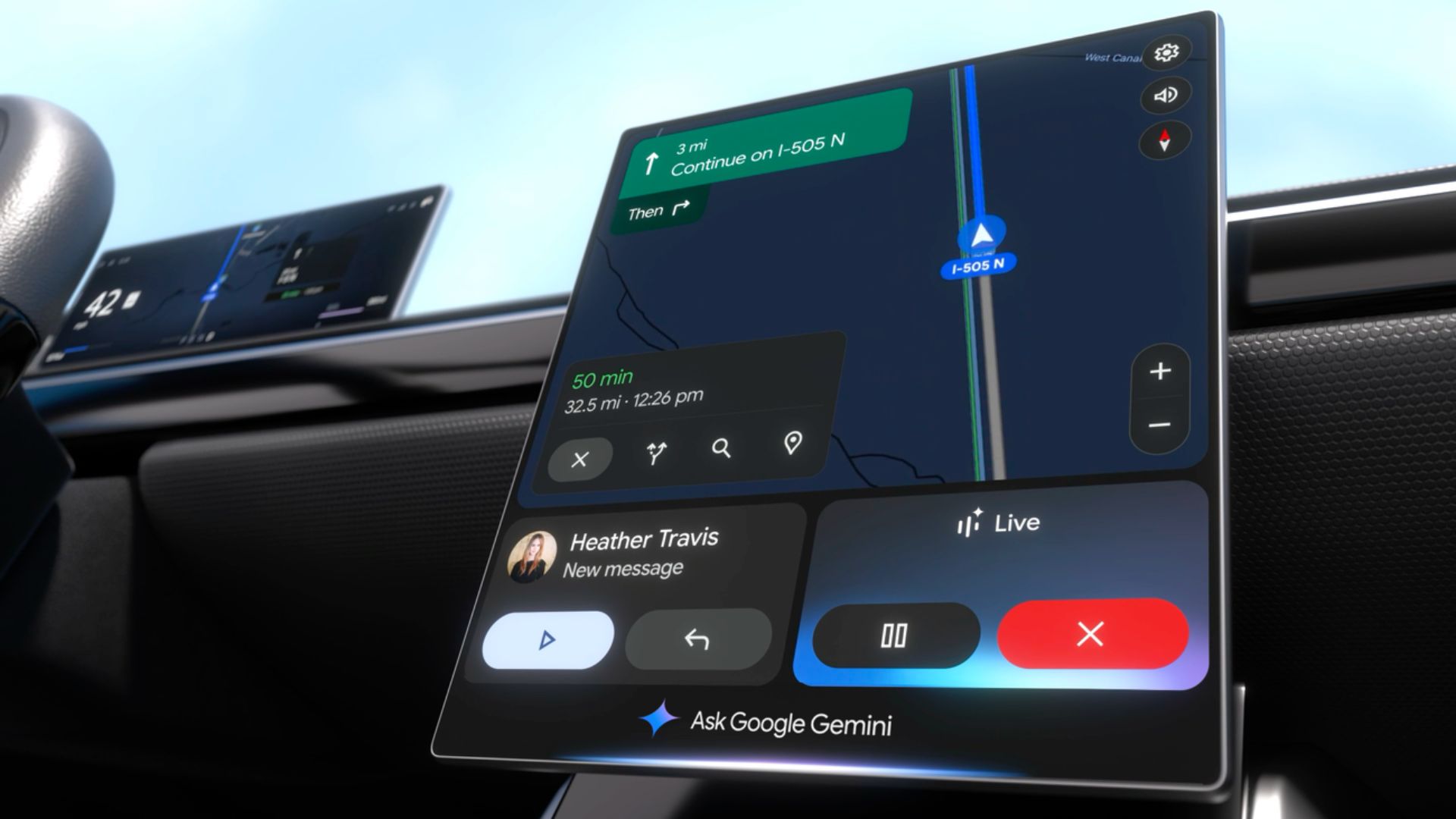
Google rolled out Android Auto 15.2 to the stable channel, introducing a comprehensive Material 3 design overhaul. The update features refreshed Material 3 colors, redesigned icons, updated toolbar icon shapes, and smoother animations throughout the interface. Following user feedback, Google’s development team has also reverted certain controversial changes from earlier versions.
Building on this foundation, the Android Auto 15.2 stable has now been released, focusing primarily on stability improvements and bug resolution. This latest update specifically addresses numerous issues affecting the Pixel 10 series while incorporating Material 3 Expressive design elements directly into the application package.
Addressing Android Auto’s Known Issues
The most significant improvement in recent updates has been comprehensive fixes for Pixel 10 series compatibility issues, which had previously prevented many users from accessing Android Auto functionality entirely.
Google’s development team has made substantial progress addressing user-reported problems, with several major fixes deployed over recent months.
Pixel 10 Grey Screen Resolution
The most critical recent fix addressed a widespread issue where car displays would show only a grey screen when connected to Pixel 10 devices. This problem, which left users unable to access any Android Auto features, was successfully resolved on September 11, 2025.
One affected user described their experience: “I just received my Pixel 10 Pro and immediately encountered connectivity issues. While my car recognized the device, the display remained grey with only the Android Auto logo watermark visible.”
Despite attempting multiple troubleshooting methods—including clearing app cache and data, and performing a factory reset on their vehicle’s entertainment system—the problem persisted until the latest Android Auto update became available through the Play Store.
Restored Audio Control Functionality
Music enthusiasts can now fully control their audio experience through Android Auto once again. Recent updates have restored fast-forward and rewind functionality, which had been broken in previous versions. This fix eliminates the need for drivers to control music through their phones while driving manually.
As one frustrated user explained: “Android Auto’s inability to rewind or fast-forward songs forced us to use our phones while driving, creating unnecessary safety risks.”
Complete Audio System Recovery
Early 2025 saw widespread reports of complete audio loss following Android Auto updates. The development team successfully identified and resolved these critical audio problems, restoring full sound functionality across all supported platforms and devices.
SiriusXM Integration Improvements
Satellite radio subscribers experienced significant menu navigation difficulties within Android Auto’s SiriusXM integration. These interface problems have been comprehensively addressed, restoring full functionality to SiriusXM’s in-car experience.
Ongoing Issues Under Investigation
While significant progress has been made, several challenges remain under active investigation by Google’s Android Auto team. Understanding these persistent issues can help users set appropriate expectations and implement effective workarounds.
Persistent Pixel 10 Connectivity Problems
Although the grey screen issue has been resolved, Pixel 10 users continue experiencing broader connection stability problems with Android Auto. These issues appear linked to the hardware and software configurations unique to Google’s latest flagship devices. The development team continues analyzing user reports to identify underlying patterns and root causes.
Voice Command System Failures
Voice commands serve as a crucial safety feature, enabling hands-free operation while driving. Unfortunately, Pixel 10 users report significant voice command malfunctions that prevent safe device interaction through spoken instructions.
One user shared their frustration: “After upgrading to the Pixel 10 Pro XL, voice commands stopped working entirely, despite confirming that microphone permissions are properly enabled.”
Third-Party Navigation App Compatibility
TomTom users have identified missing sidebar functionality when using their preferred navigation app through Android Auto. This integration problem appears specific to TomTom’s implementation rather than a system-wide Android Auto issue, affecting navigation efficiency and overall user experience.
Random Disconnection Issues
Pixel 9 Pro users report unexpected disconnections during active Android Auto sessions. These interruptions can occur without warning, disrupting navigation, music playback, and communication functions. The unpredictable nature of these disconnections makes them particularly challenging to diagnose and resolve.
Samsung Galaxy S25 Compatibility Challenges
Samsung’s latest Galaxy S25 devices are experiencing connection difficulties with Android Auto, suggesting potential compatibility conflicts between Samsung’s newest software implementations and Android Auto’s connection protocols.
Google Assistant Error Messages
Some users encounter generic “oops, something went wrong” error messages when attempting to use Google Assistant through Android Auto. These vague error responses provide insufficient information for effective troubleshooting, leaving users unable to resolve the underlying problems independently.
Android Auto to get Material 3 Expressive design
Google has been integrating Material 3 Expressive design for various apps and platforms including Android OS, Wear OS, Android TV OS, and now Android Auto. The main Google app, Gmail, Pixel Camera, Google Phone, Pixel Watch 4.0 App got the M3E design change.
The firm also unveiled Material 3 Expressive Design, which will come to all Android platforms, including phones, smartwatches, and cars. The new change will also be published across all the Google apps including the Android Auto mobile app.
In the latest Android Auto 15.2 update, Google has already implemented Material 3 Expressive Design code. Users may soon see the new design starting with the mobile app.
Cars may implement Material 3 Expressive Design change in the later iterations, after a backlash seen with the Material 3 design.
We found the following code during our APK analysis:
Click to view every Material 3 Expressive code in Android Auto
<public type=”xml” name=”m3expressive_button_shape_state_list” />
<public type=”xml” name=”m3expressive_connected_buttons_inner_corner_size_state_list” />
<public type=”integer” name=”m3expressive_bottom_nav_icon_gravity” />
<public type=”integer” name=”m3expressive_bottom_nav_item_gravity” />
<public type=”layout” name=”m3expressive_alert_dialog” />
<public type=”layout” name=”m3expressive_alert_dialog_title” />
<public type=”xml” name=”m3expressive_button_shape_state_list” />
<public type=”xml” name=”m3expressive_connected_buttons_inner_corner_size_state_list” />
<public type=”style” name=”Theme.Material3Expressive.Dark” />
<public type=”style” name=”Theme.Material3Expressive.Dark.Dialog” />
<public type=”style” name=”Theme.Material3Expressive.Dark.Dialog.Alert” />
<public type=”style” name=”Theme.Material3Expressive.Dark.Dialog.MinWidth” />
<public type=”style” name=”Theme.Material3Expressive.Dark.DialogWhenLarge” />
<public type=”style” name=”Theme.Material3Expressive.Dark.NoActionBar” />
<public type=”style” name=”Theme.Material3Expressive.DayNight” />
<public type=”style” name=”Theme.Material3Expressive.DayNight.DialogWhenLarge” />
<public type=”style” name=”Theme.Material3Expressive.DayNight.NoActionBar” />
<public type=”style” name=”Theme.Material3Expressive.DynamicColors.Dark” />
<public type=”style” name=”Theme.Material3Expressive.DynamicColors.Dark.NoActionBar” />
<public type=”style” name=”Theme.Material3Expressive.DynamicColors.DayNight” />
<public type=”style” name=”Theme.Material3Expressive.DynamicColors.DayNight.NoActionBar” />
<public type=”style” name=”Theme.Material3Expressive.DynamicColors.Light” />
<public type=”style” name=”Theme.Material3Expressive.DynamicColors.Light.NoActionBar” />
<public type=”style” name=”Theme.Material3Expressive.Light” />
<public type=”style” name=”Theme.Material3Expressive.Light.Dialog” />
<public type=”style” name=”Theme.Material3Expressive.Light.Dialog.Alert” />
<public type=”style” name=”Theme.Material3Expressive.Light.Dialog.MinWidth” />
<public type=”style” name=”Theme.Material3Expressive.Light.DialogWhenLarge” />
<public type=”style” name=”Theme.Material3Expressive.Light.NoActionBar” />
<public type=”dimen” name=”m3expressive_alert_dialog_bottom_padding” />
<public type=”dimen” name=”m3expressive_alert_dialog_top_padding” />
<public type=”dimen” name=”m3expressive_btn_min_height” />
<public type=”dimen” name=”m3expressive_btn_min_width” />
<public type=”dimen” name=”m3expressive_nav_rail_content_margin_top” />
<public type=”dimen” name=”m3expressive_nav_rail_header_items_margin” />
<public type=”dimen” name=”m3expressive_nav_rail_item_leading_trailing_padding” />
<public type=”dimen” name=”m3expressive_nav_rail_item_min_height” />
<public type=”dimen” name=”m3expressive_nav_rail_item_spacing” />
<public type=”dimen” name=”m3expressive_nav_rail_item_vertical_padding” />
<public type=”dimen” name=”m3expressive_nav_rail_min_width” />
<public type=”color” name=”m3expressive_bottom_nav_item_icon_tint” />
<public type=”color” name=”m3expressive_bottom_nav_item_label_tint” />
<public type=”color” name=”m3expressive_bottom_nav_item_ripple_tint” />
<public type=”color” name=”m3expressive_button_outline_color_selector” />
<public type=”color” name=”m3expressive_button_outlined_background_color_selector” />
<public type=”color” name=”m3expressive_nav_rail_item_icon_tint” />
<public type=”color” name=”m3expressive_nav_rail_item_label_tint” />
<public type=”color” name=”m3expressive_nav_rail_item_ripple_tint” />
<public type=”color” name=”settingslib_expressive_button_outline_color_selector” />
<public type=”color” name=”settingslib_expressive_button_outlined_background_color_selector” />
<public type=”color” name=”settingslib_expressive_color_main_switch_bar_bg” />
<public type=”color” name=”settingslib_expressive_color_main_switch_text” />
<public type=”color” name=”settingslib_expressive_color_slider_halo” />
<public type=”color” name=”settingslib_expressive_color_slider_thumb” />
<public type=”color” name=”settingslib_expressive_color_slider_track_active” />
<public type=”color” name=”settingslib_expressive_color_slider_track_inactive” />
<public type=”color” name=”settingslib_expressive_color_switch_thumb” />
<public type=”color” name=”settingslib_expressive_color_switch_thumb_icon” />
<public type=”color” name=”settingslib_expressive_color_switch_track” />
<public type=”color” name=”settingslib_expressive_filled_button_color” />
<public type=”style” name=”SettingslibSliderStyle.Expressive” />
<public type=”style” name=”SettingslibSpinnerStyle.Expressive” />
<public type=”style” name=”SettingslibSpinnerStyle.Expressive.Outlined” />
<public type=”style” name=”SettingslibSwitchStyle.Expressive” />
<public type=”style” name=”SizeOverlay.Material3Expressive.Button.IconButton.Large” />
<public type=”style” name=”SizeOverlay.Material3Expressive.Button.IconButton.Large.Narrow” />
<public type=”style” name=”SizeOverlay.Material3Expressive.Button.IconButton.Large.Narrow.Square” />
<public type=”style” name=”SizeOverlay.Material3Expressive.Button.IconButton.Large.Square” />
<public type=”style” name=”SizeOverlay.Material3Expressive.Button.IconButton.Large.Wide” />
<public type=”style” name=”SizeOverlay.Material3Expressive.Button.IconButton.Large.Wide.Square” />
<public type=”style” name=”SizeOverlay.Material3Expressive.Button.IconButton.Medium” />
<public type=”style” name=”SizeOverlay.Material3Expressive.Button.IconButton.Medium.Narrow” />
<public type=”style” name=”SizeOverlay.Material3Expressive.Button.IconButton.Medium.Narrow.Square” />
<public type=”style” name=”SizeOverlay.Material3Expressive.Button.IconButton.Medium.Square” />
<public type=”style” name=”SizeOverlay.Material3Expressive.Button.IconButton.Medium.Wide” />
<public type=”style” name=”SizeOverlay.Material3Expressive.Button.IconButton.Medium.Wide.Square” />
<public type=”style” name=”SizeOverlay.Material3Expressive.Button.IconButton.Small” />
<public type=”style” name=”SizeOverlay.Material3Expressive.Button.IconButton.Small.Narrow” />
<public type=”style” name=”SizeOverlay.Material3Expressive.Button.IconButton.Small.Narrow.Square” />
<public type=”style” name=”SizeOverlay.Material3Expressive.Button.IconButton.Small.Square” />
<public type=”style” name=”SizeOverlay.Material3Expressive.Button.IconButton.Small.Wide” />
<public type=”style” name=”SizeOverlay.Material3Expressive.Button.IconButton.Small.Wide.Square” />
<public type=”style” name=”SizeOverlay.Material3Expressive.Button.IconButton.Xlarge” />
<public type=”style” name=”SizeOverlay.Material3Expressive.Button.IconButton.Xlarge.Narrow” />
<public type=”style” name=”SizeOverlay.Material3Expressive.Button.IconButton.Xlarge.Narrow.Square” />
<public type=”style” name=”SizeOverlay.Material3Expressive.Button.IconButton.Xlarge.Square” />
<public type=”style” name=”SizeOverlay.Material3Expressive.Button.IconButton.Xlarge.Wide” />
<public type=”style” name=”SizeOverlay.Material3Expressive.Button.IconButton.Xlarge.Wide.Square” />
<public type=”style” name=”SizeOverlay.Material3Expressive.Button.IconButton.Xsmall” />
<public type=”style” name=”SizeOverlay.Material3Expressive.Button.IconButton.Xsmall.Narrow” />
<public type=”style” name=”SizeOverlay.Material3Expressive.Button.IconButton.Xsmall.Narrow.Square” />
<public type=”style” name=”SizeOverlay.Material3Expressive.Button.IconButton.Xsmall.Square” />
<public type=”style” name=”SizeOverlay.Material3Expressive.Button.IconButton.Xsmall.Wide” />
<public type=”style” name=”SizeOverlay.Material3Expressive.Button.IconButton.Xsmall.Wide.Square” />
<public type=”style” name=”SizeOverlay.Material3Expressive.Button.Large” />
<public type=”style” name=”SizeOverlay.Material3Expressive.Button.Large.Square” />
<public type=”style” name=”SizeOverlay.Material3Expressive.Button.Medium” />
<public type=”style” name=”SizeOverlay.Material3Expressive.Button.Medium.Square” />
<public type=”style” name=”SizeOverlay.Material3Expressive.Button.Small” />
<public type=”style” name=”SizeOverlay.Material3Expressive.Button.Small.Square” />
<public type=”style” name=”SizeOverlay.Material3Expressive.Button.Xlarge” />
<public type=”style” name=”SizeOverlay.Material3Expressive.Button.Xlarge.Square” />
<public type=”style” name=”SizeOverlay.Material3Expressive.Button.Xsmall” />
<public type=”style” name=”SizeOverlay.Material3Expressive.Button.Xsmall.Square” />
<public type=”dimen” name=”hero_soip_status_bar_height” />
<public type=”drawable” name=”gs_ac_unit_fill1_vd_theme_24″ />
<public type=”drawable” name=”gs_heat_fill1_vd_theme_24″ />
<public type=”drawable” name=”gs_thermometer_vd_theme_24″ />
Download Android Auto 15.2 Stable Update
Android Auto 15.2 is available for download through multiple channels and will utilize the bundled APKs format moving forward, representing a significant change in how the application is distributed and installed. The installation process remains straightforward for most users, though the new format may require additional applications to install Split APKs, APKM, xAPK, or zip files depending on the user’s device configuration and preferred installation method.
Note that for some users, the Android Auto 15.2 crashes or won’t open. Either wait for another update or visit Google Play Store and uninstall update. Link below.
Download Android Auto from Play Store
The official Android Auto listing is now available on Play Store. However, the latest version takes some time to reflect as it is a phased update.


APK Download
- Android Auto 15.2 stable download (rename .APKM to .ZIP)
- Android Auto 15.2.653604 arm64-v8a Android 8.0+ 120-640dpi
- Android Auto 15.2.653613 armeabi-v7a Android 8.0+ 120-640dpi
- Android Auto 15.2.653614 arm64-v8a Android 8.0+ 160-640dpi
- Android Auto 15.2.653617 x86 Android 8.0+ 480dpi
- Android Auto 15.2.653618 x86_64 Android 8.0+ 480dpi
- Then Install Split APKS/XAPK/APKM/ZIP using SAI Installer (FOSS)
Gemini for Android Auto
Google is getting closer to implementing Gemini for Android Auto, a new AI assistant for cars completely replacing the native Google Assistant. When Gemini 3.0 launches, Google may release a super lightweight AI model for tasks specific to cars.
Google’s Android Auto Team also proclaimed on community forums as to when the Gemini integration will come to Android Auto. Google Assistant will be deprecated sooner than expected across all Android platforms. The AA support team replied that Gemini will be coming to cars later this year and in the coming months, Google Assistant will be deprecated.
YouTube on Android Auto
NewPipe, the popular open-source YouTube client that prioritizes user privacy and functionality, has reached a significant milestone with the release of version 0.28.0. This latest update introduces highly anticipated Android Auto integration, marking a transformative moment for users who value both privacy and seamless multimedia experiences while driving. NewPipe enables playing any YouTube video on Android Auto in audio mode. So, users can listen to their favorite music or podcasts while driving.
Try Samsung Auto
Samsung users have one more reason to be optimistic about their in-car experience, as Samsung is actively developing Samsung Auto with DeX connectivity as a possible alternative to Android Auto. This innovative solution builds upon Google’s existing Android Auto platform while specifically addressing the connectivity and functionality issues that Samsung phone users have commonly experienced over the years.
Here, see what’s new in the latest Android Auto 14.8.652804 update and download APK. (120-640dpi) (Android 8.0+)
- Also read:
Previous updates included substantial new code featuring Gemini AI settings integrated directly into the Android Auto phone settings app, indicating Google’s commitment to advancing AI integration in automotive applications.
