
How to get Android Quick Share to Apple Airdrop Update Right Now!


Subscribe for Updates
Google, partnering with Samsung, has announced native file sharing between Android and Apple iOS devices. The newly introduced Quick Share feature allows Android users to wirelessly transfer files to iPhones, similar to how AirDrop works within the Apple ecosystem. Quick Share’s latest update introduces the “Share with Apple Devices” option, bringing seamless compatibility with iPhones, iPads, and Macs. Update Quick Share to the latest version to start sharing files with Apple devices directly from your Android.
The Cross-Platform File Sharing Problem Android Users Face
If you’ve ever tried to send a file from your Samsung Galaxy phone to an iPhone or MacBook, you’ve probably hit a wall. Apple’s AirDrop is locked to its own ecosystem, and Samsung’s Quick Share — while excellent between Android devices — hasn’t historically played nice with Apple hardware. That’s starting to change, and the Samsung Quick Share now has Airdrop feature.
For decades, the smartphone world has long been divided by invisible walls. Android users couldn’t easily send files to iPhone owners, and vice versa. For years, workarounds like email, cloud storage, and third-party apps have been necessary crutches for cross-platform file sharing. But everything changes today. Google and Samsung have updated Android Quick Share app that now works with Apple’s AirDrop.
This guide documents exactly how to get Quick Share working with Apple devices on a Samsung Galaxy device running One UI 8. Google Pixel users may try updating the supporting Quick Share extension plugin to see if the “Share with Apple devices” option shows up in Quick Share. Follow the tutorial below. The following method has been tested on most Samsung devices running One UI 8 and One UI 8.5.
How Android Quick Share with AirDrop Works
Android Quick Share with AirDrop support creates a bridge between two previously separate file-sharing ecosystems. Here’s what you need to know about how it functions:
Direct Device-to-Device Transfer: The feature enables direct peer-to-peer file sharing without requiring cloud intermediaries. This means faster transfers and reduced data consumption.
Proximity-Based Discovery: Similar to traditional AirDrop, devices detect each other based on proximity, making the experience intuitive and automatic.
Universal Compatibility: The integration means Android users can now send files to iPhones and vice versa using the native file-sharing mechanisms both ecosystems are already familiar with.
Starting with Samsung and Google Pixel: The rollout begins with Samsung and Google’s Pixel family. Other OEM users like Nothing, OnePlus, OPPO, Vivo, Xiaomi can try this method as Quick Share is universal to Android devices now.
Features available
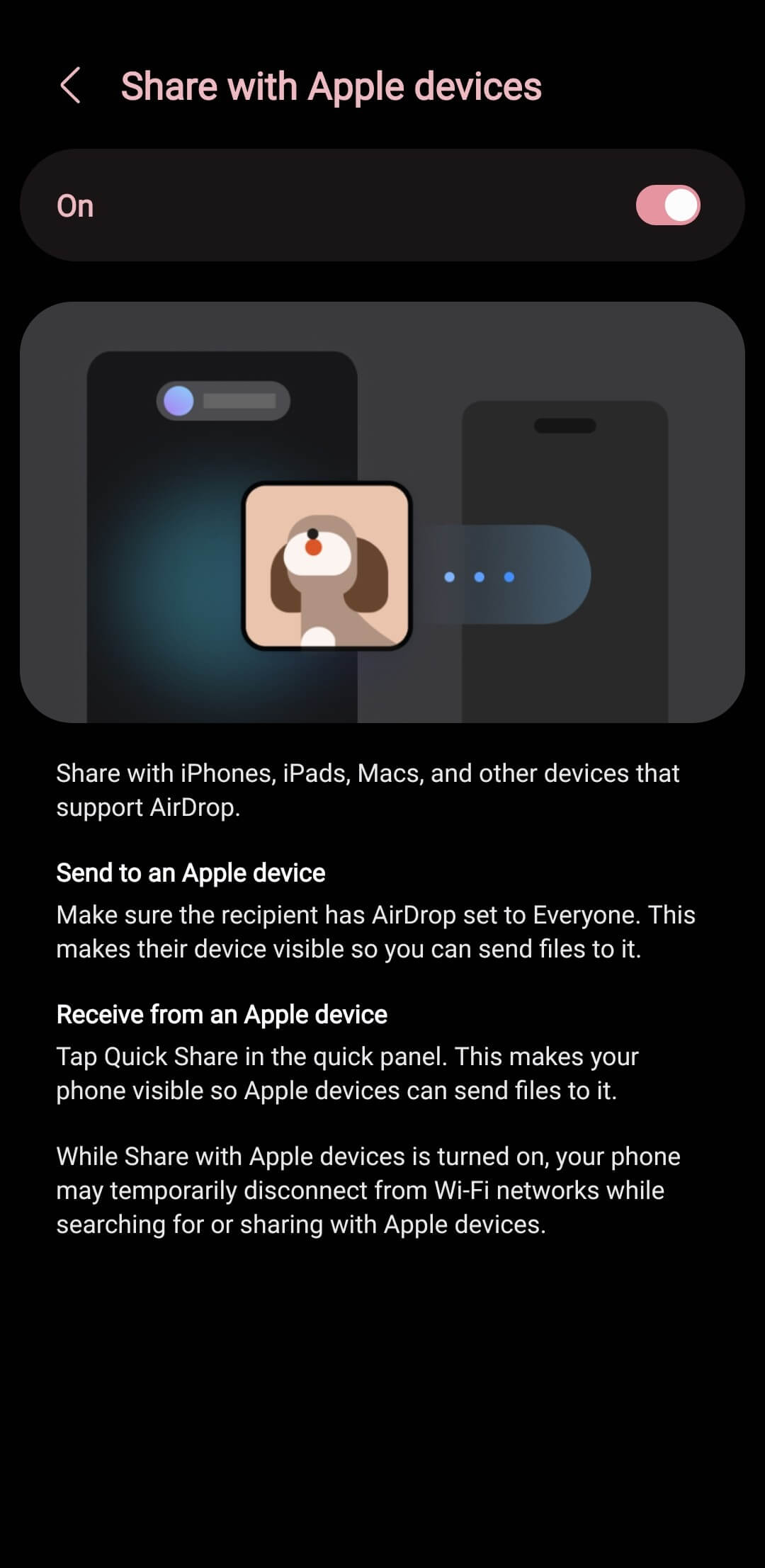
Share with iPhones, iPads, Macs, and other devices that support AirDrop.
Send to an Apple device
Make sure the recipient has AirDrop set to Everyone. This makes their device visible so you can send files to it.
Receive from an Apple device
Tap Quick Share in the quick panel. This makes your phone visible so Apple devices can send files to it.
While Share with Apple devices is turned on, your phone may temporarily disconnect from Wi-Fi networks while searching for or sharing with Apple devices.
Plus, Google built this feature with security as the primary consideration, not an afterthought. This is crucial, especially for a feature that involves transferring personal data between devices.
End-to-End Encryption: File transfers are protected with strong encryption protocols, ensuring data remains private during transit. Even if someone intercepts the transfer, the data remains unreadable without the proper decryption keys.
What Makes This Work: The Quick Share Extension by Google
The key ingredient here is a relatively new piece of software called Quick Share Extension by Google. This extension adds Wi-Fi Direct connection support for Apple devices — the same underlying technology that powers AirDrop — and bridges the gap between Samsung’s built-in Quick Share and Apple’s ecosystem.
Key Facts About the Extension
- It is designed for Android 16 and above
- It appears to be automatically installed on devices receiving the latest Samsung S25 update
- It can, however, be manually installed on any compatible device
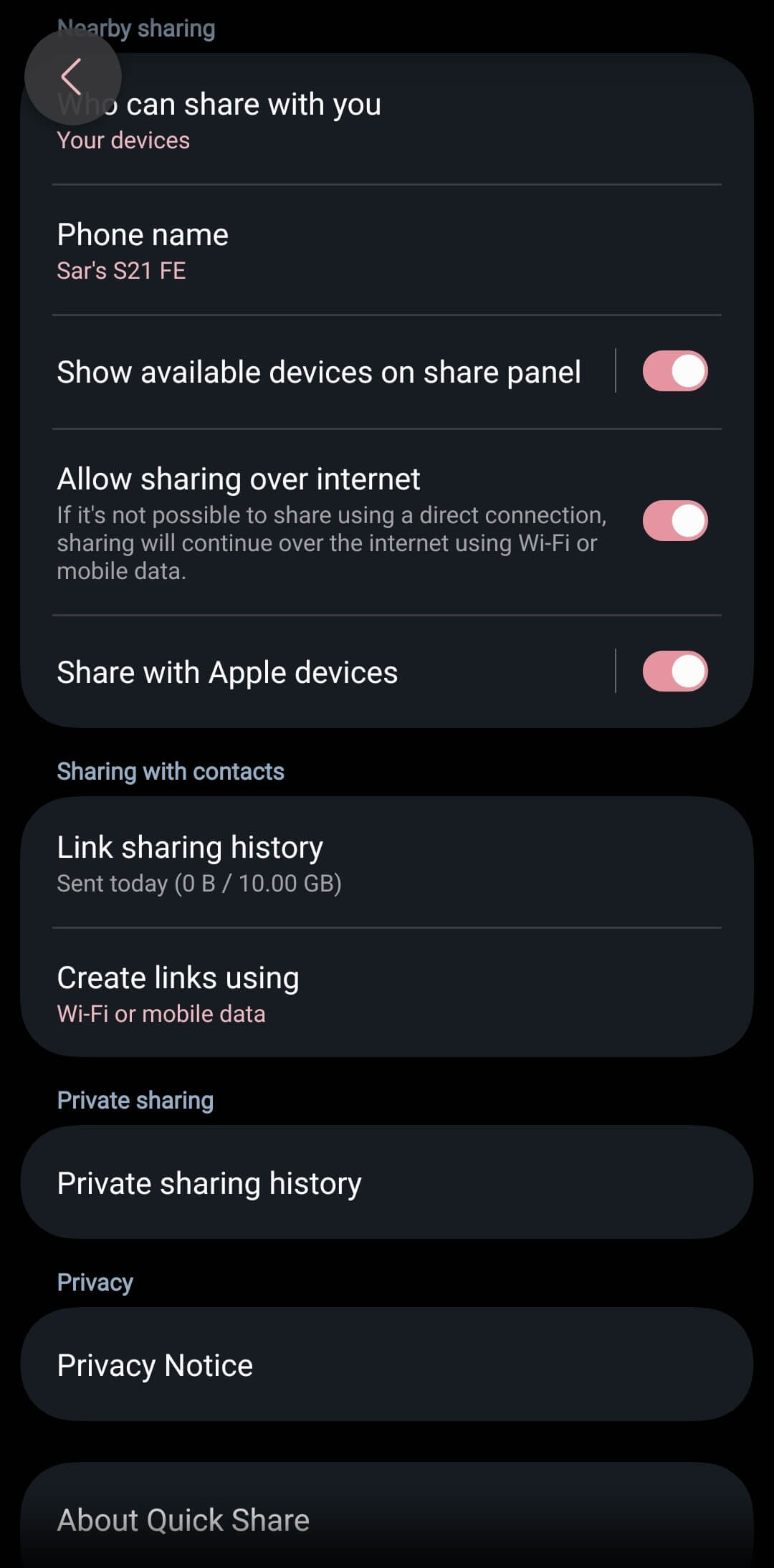
- Once installed, it merges with Samsung’s built-in Quick Share and adds a new toggle in the Quick Share settings specifically for sharing with Apple devices
Step-by-Step: How to Enable Quick Share for Apple Devices
Step 1: Update Your Operating System
Before anything else, make sure your Samsung or Google device is running the latest available OS version. System updates often bundle app updates and backend dependencies that newer features rely on. Without these, the extension may not function correctly.
Step 2: Update Quick Share and Its Companion Apps
- One Samsung, open the Galaxy Store on your Samsung device
- Navigate to Updates
- Look for Quick Share and any listed companion apps
- Install all available updates before proceeding
Note: the current tested version is Quick Share v13.8.51.58 (2026.03.31)
Step 3: Download the Quick Share Extension by Google
This is the critical step. The extension is not currently available directly through the Galaxy Store for all devices, so you’ll need to download the APK and install it manually.
Google made a new Quick Share extension to use this feature on all Android smartphone manufacturers. While some Pixel 10 users might already have this with the latest March 2026 security patch or Play System update, you can manually download the Quick Share extension 1.0.874307641 APK! Note that the extension only supports Android 16+ os older devcies may not get this feature just yet.
- Quick Share Extension by Google
Step 4: Verify You Have the Updated Quick Share UI
Once installed, confirm that your Quick Share app displays the new One UI 8.5 bottom pill design.
You don’t have to be on One UI 8.5 for this to work — you just need the newer version of the Quick Share app with the updated interface.
A new toggle for sharing with Apple devices should now appear inside your Quick Share settings.
Step 5: Configure the Apple Device
On the receiving Apple device, ensure that AirDrop is set to receive from Everyone. This setting is found in:
- iPhone/iPad: Settings → General → AirDrop → Everyone (or Everyone for 10 Minutes)
- Mac: Finder → AirDrop → Allow me to be discovered by: Everyone
