
How to download Pixel Watch 4 Watch Faces on any Wear OS device


Google unveiled the Pixel Watch 4 at its Pixel 10 launch event, introducing new watch faces that can be installed on older Pixel watches and any Wear OS-based smartwatch.
Historically, Pixel watch faces have been compatible with Samsung Galaxy Watches, including the Watch 4 and Watch 5 series. The new watch faces can reportedly be installed on the Pixel Watch 3, Pixel Watch 2, and possibly the original Pixel Watch, but require Wear OS 6 or later.
Google recently changed the Watch Faces format, meaning Wear OS 6 watch faces won’t work on devices running older versions. Some users have successfully installed them on OnePlus Watch and newer Samsung Galaxy Watches. If you’re installing on other OEM watches, ensure you have the latest Wear OS 6 software update.
The Pixel Watch features stunning, minimal watch faces that look beautiful on AMOLED screens. The brand new Google Pixel Watch Faces (Wear OS) 4.0 includes all Pixel Watch 4 faces, and the best part is you can install them on any smartwatch.
The Pixel Watch 4 watch faces target the latest Wear OS 6.0+ firmware update based on Android 13 or newer. For Samsung watches, access Pixel Watch 4 faces through the Galaxy Wearable app in the third-party watch faces downloads section.
Some Pixel watch faces include
- Modular
- Bold
- Pride
- Expedition
- Reveal
- Rushhour
- Arts & Culture
- Concentric
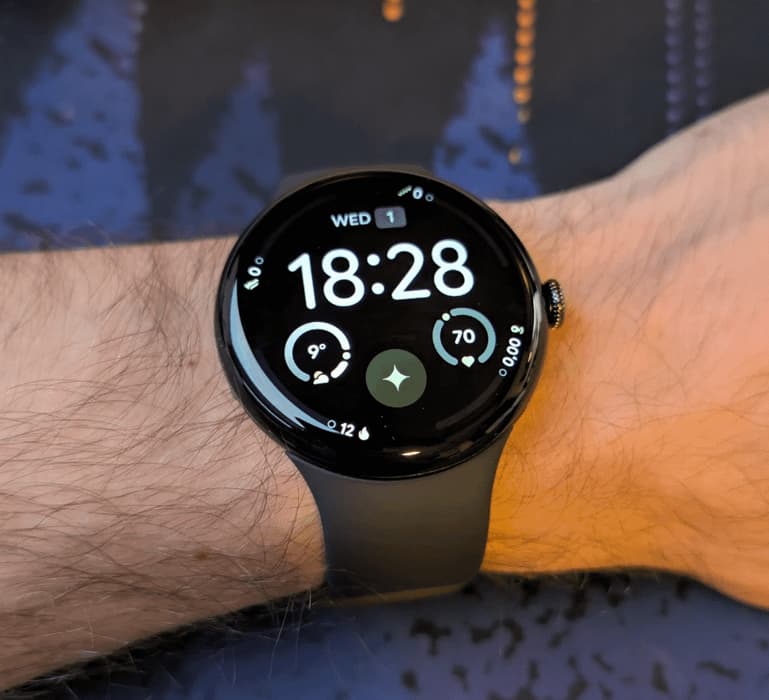
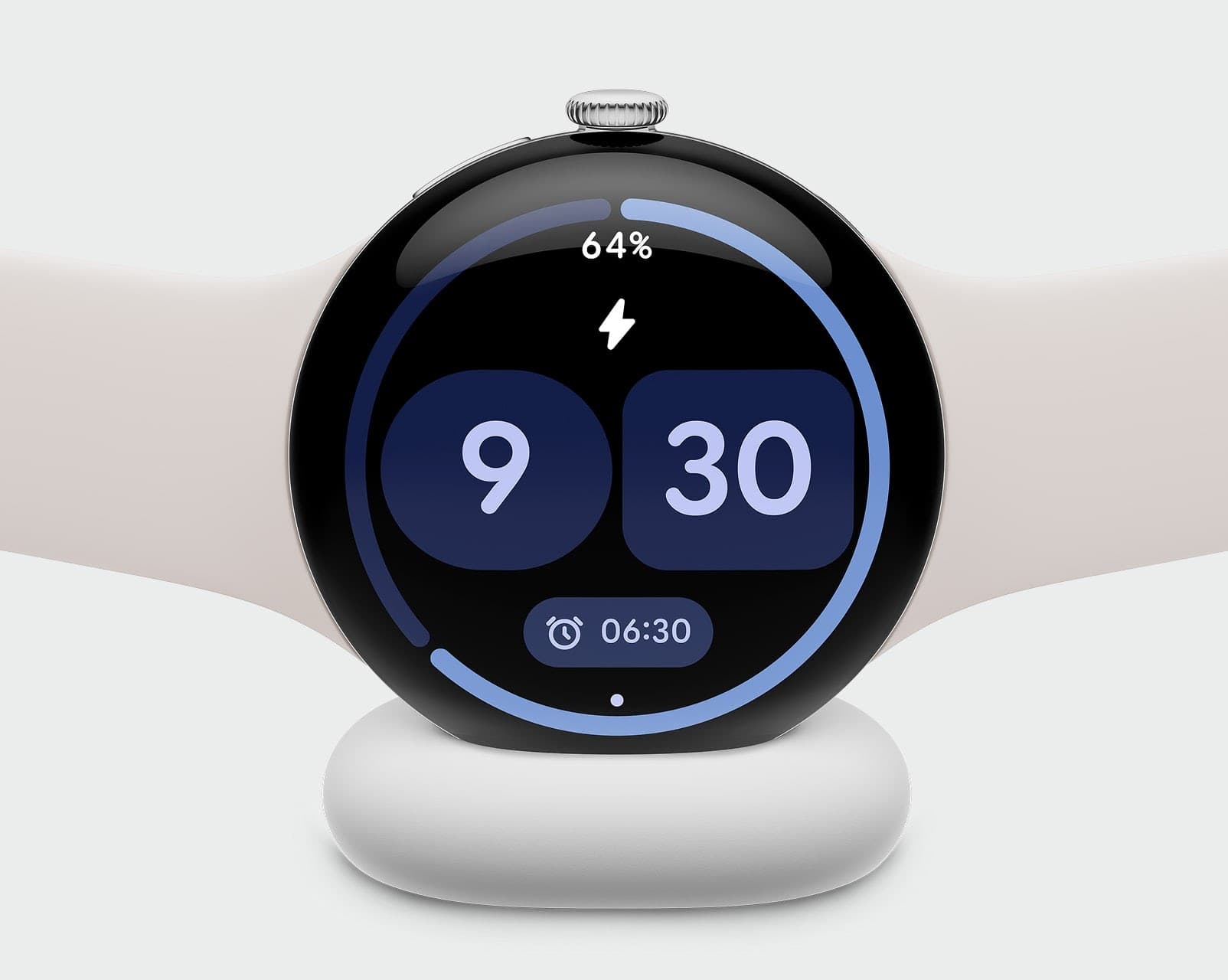
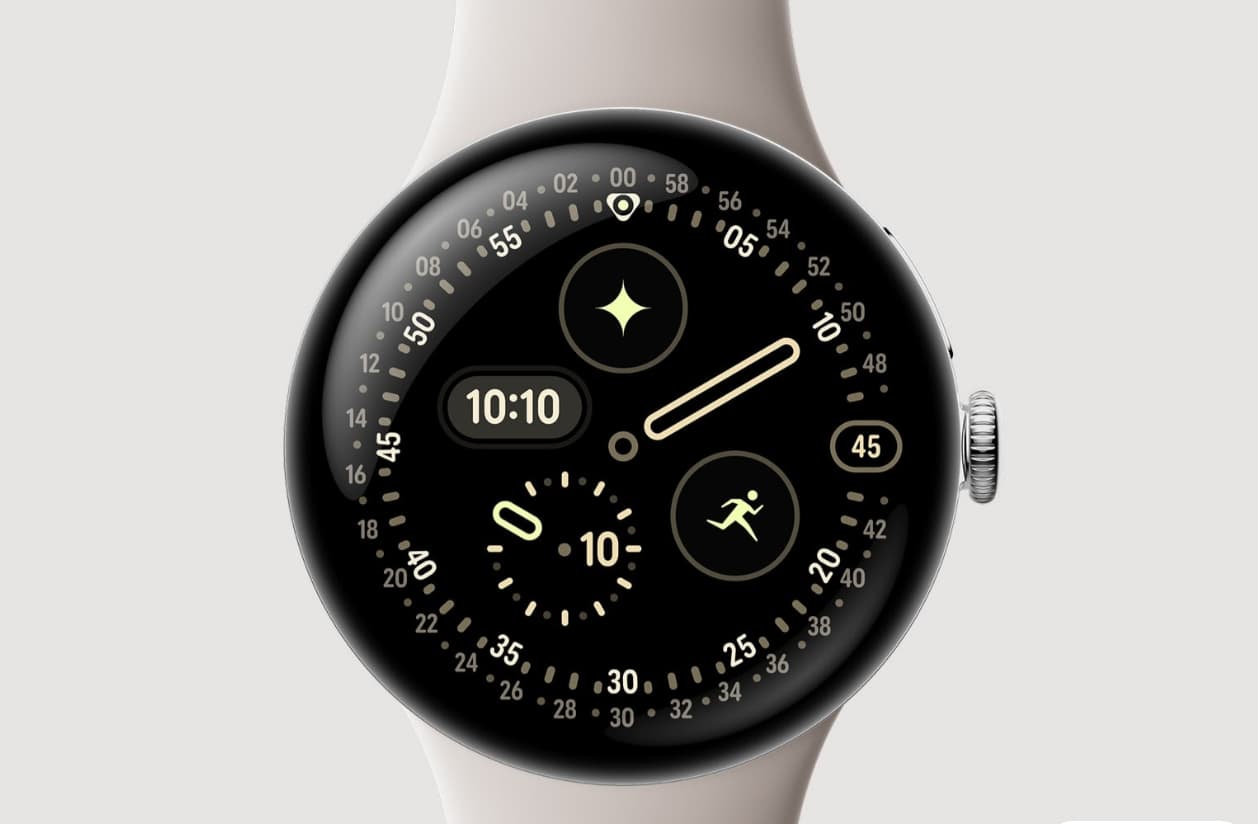
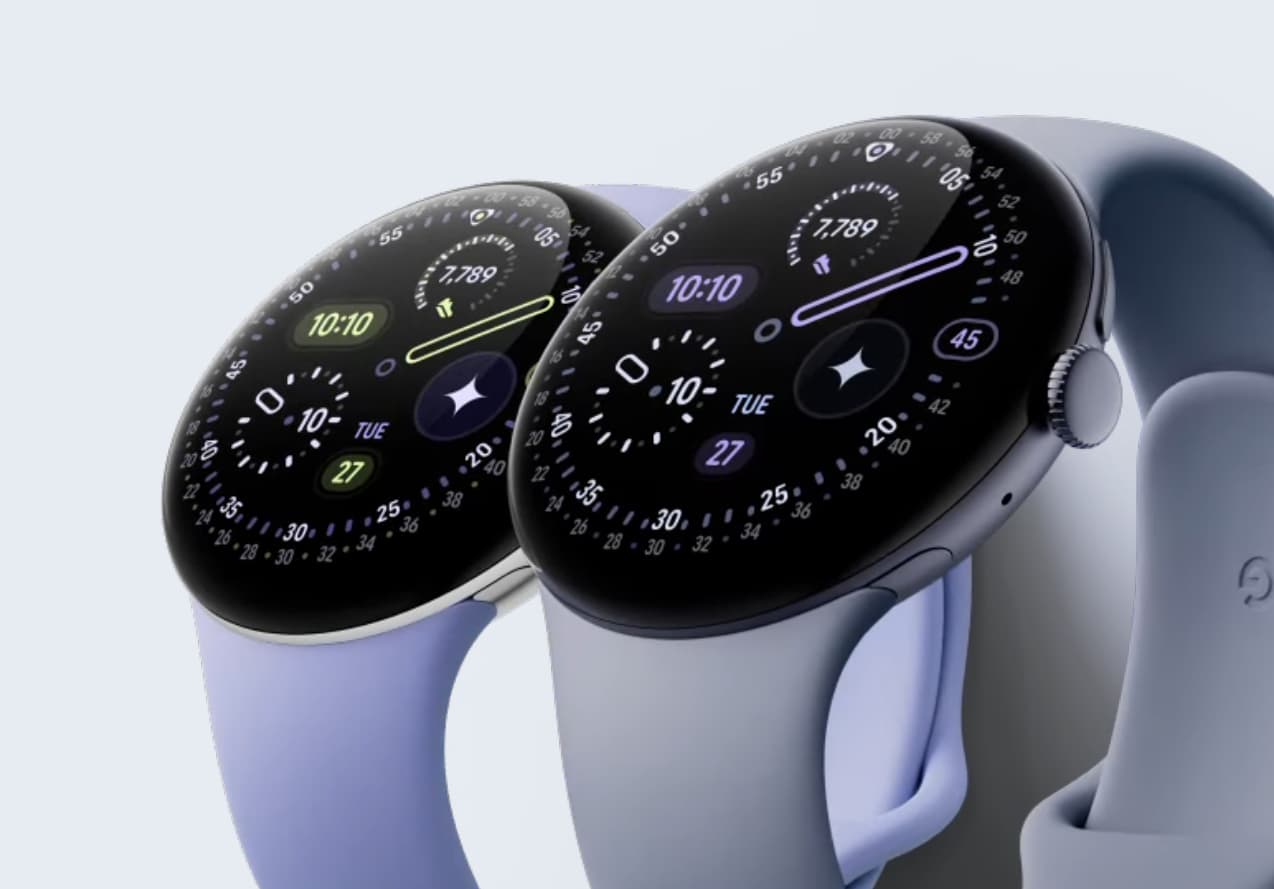
Download Google Pixel Watch 4 watch faces APK
New Google Pixel Watch Faces (Wear OS) 4.0.251.812944445 is now available for download with new clock faces, watch faces, and weather watch faces.
Get Pixel Watch 4 Faces from Play Store
The official Google Pixel Watch Faces app has been updated on the Play Store. Yo u can simply update the app on your Pixel watch to get the latest watchfaces that come from Pixel Watch.
- Update Google Pixel Watch Faces app (App Store)
APK Download
- Google Watch Faces (Wear OS) 4.0 (sideload)
Alternatively, thanks to thedelicatesnowflake, for extracting individual Pixel Watch 4 faces to sideload using the below method.
- Download Pixel Watch 4 watch faces individual APKs
- Mirror link
How to sideload Watch Faces from Google Pixel 4?
This method requires sideloading APK over WiFi and ADB. As most WearOS devices do not come with a USB port, installing an APK file needs an external third-party app on your phone. So let’s begin!
- Download Google Watch Faces APK and transfer it to phone storage.
- On your smartwatch, go to Settings > Connections.
- Turn off Bluetooth. (Disconnecting it from the phone)
- Turn On WiFi and connect to the same WiFi network as your phone.
- Download app like GeminiMan WearOS Manager on your phone and Galaxy Watch device.
- Enable ADB Debugging on Watch from Developer Options to connect the watch to the phone over WiFi.
- First, enable Developer Options. To do so, visit Settings > About Watch > Software > Tap on Software Version multiple times.
- Go back to Settings > Developer Options.
- Enable ADB Debugging.
- Enable Wireless Debugging or Debug over WiFi.
- Select Pair new device.
- Note down the IP address and Pairing Code when you enable WiFi Debug option.
- Launch GeminiMan WearOS Manager app on phone.
- Go to WearOS Manager Tab.
- Select the option connect.
- Add the IP address and Pairing Code.
- Approve all the prompts to enable debugging.
- This should launch the GeminiMan WearOS Manager app on Galaxy Watch.
- Once connected, scroll down on phone, and select Install APK file
- Under Connection Settings, input the IP address you noted before.
- Go to homepage and in the top right corner tap on the socket icon.
- This will establish a connection to your smartwatch over WiFi.
- Go to Custom APK File option and select the Watch Faces APK file.
- Select the watch face APK you want to install from phone storage.
- Tap to Install.
- Once done, go to the Galaxy Wearable app on your phone.
- Scroll down to the downloaded option, and select your favorite Watch Face!
Watch video tutorial:
